I built a YouTube Shorts caption creator where you can upload a video, add captions in English, embed them into the video, and download the captioned output. This is common across short-form content on podcasts, LinkedIn, Twitter, TikTok, and YouTube.
It works for English and other languages, including mixed-language speech like Tamil with English words.
I tested it with a popular clip and it captured the speech accurately with time-synced captions.
I also tried a Tamil-English mix where words like button and discipline appear alongside Tamil, and the results were impressive.
There were a couple of minor mistakes, but overall it transcribed and translated well.
A lot of companies provide ASR and subtitle embedding as a commercial service, like Descript. What I am sharing runs entirely on Google Colab with open source tools and it is free to try.
If you want multilingual context for Whisper, see multilingual Whisper.
Why OpenAI Whisper Video Captioning
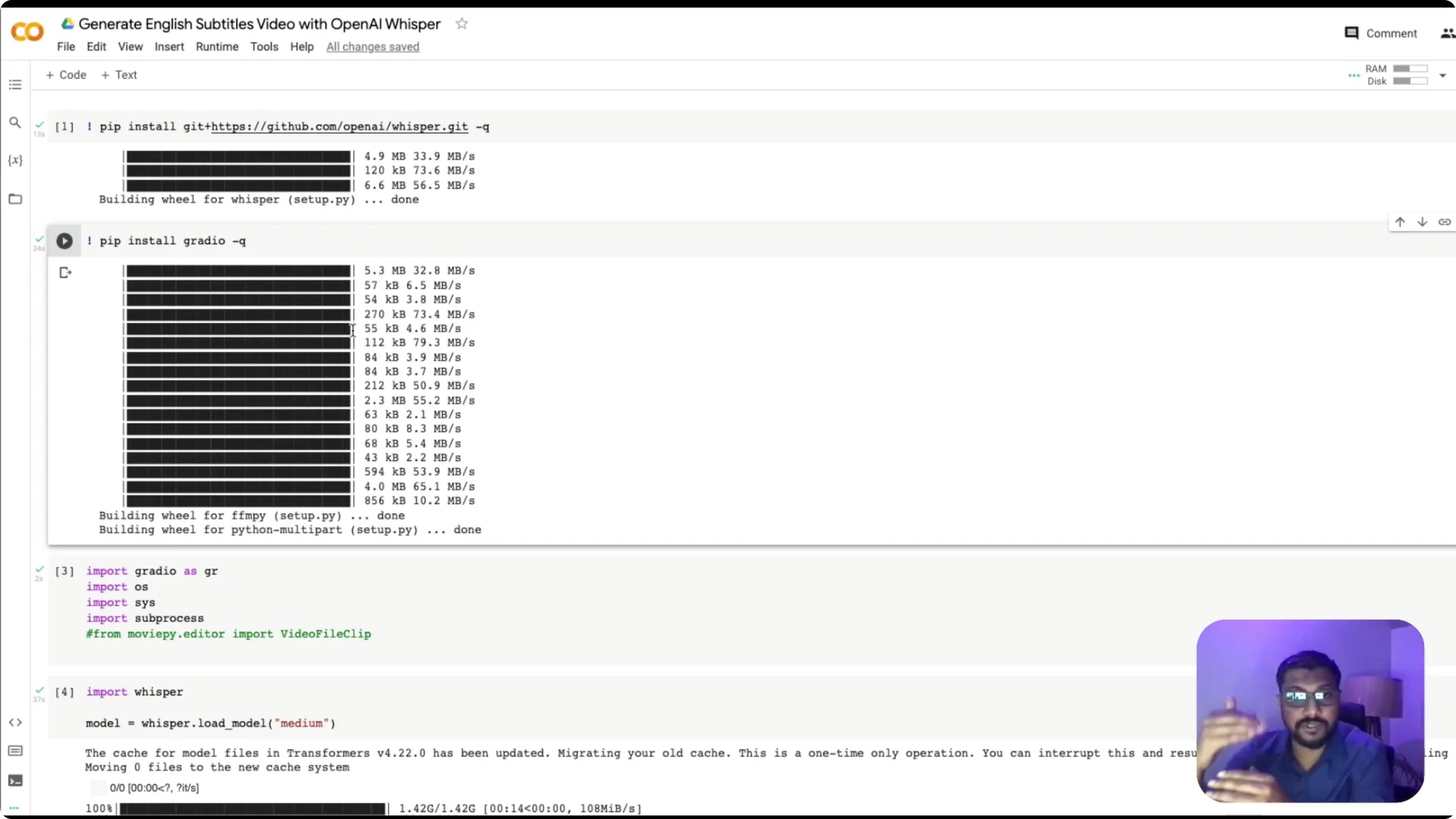
I am using the latest Whisper from OpenAI to transcribe and translate audio from videos.
The app lets anyone upload a clip, generate subtitles, and burn those subtitles directly into the video.
No toggling separate subtitle files – the text is embedded right on the frames.
This approach is especially useful for shorts where dynamic captions are part of the viewing experience. It can handle English and many other languages, and it can translate into English when the source is not English. That makes it ideal for mixed-language content.
OpenAI Whisper Video Captioning: Workflow
The workflow is simple to follow.
Upload a video, convert it to audio, send the audio to Whisper for translation to English, create a VTT subtitle file with timestamps, burn the subtitle into the original video, and download the result. Keep this flow in mind as we build.
Convert video to audio
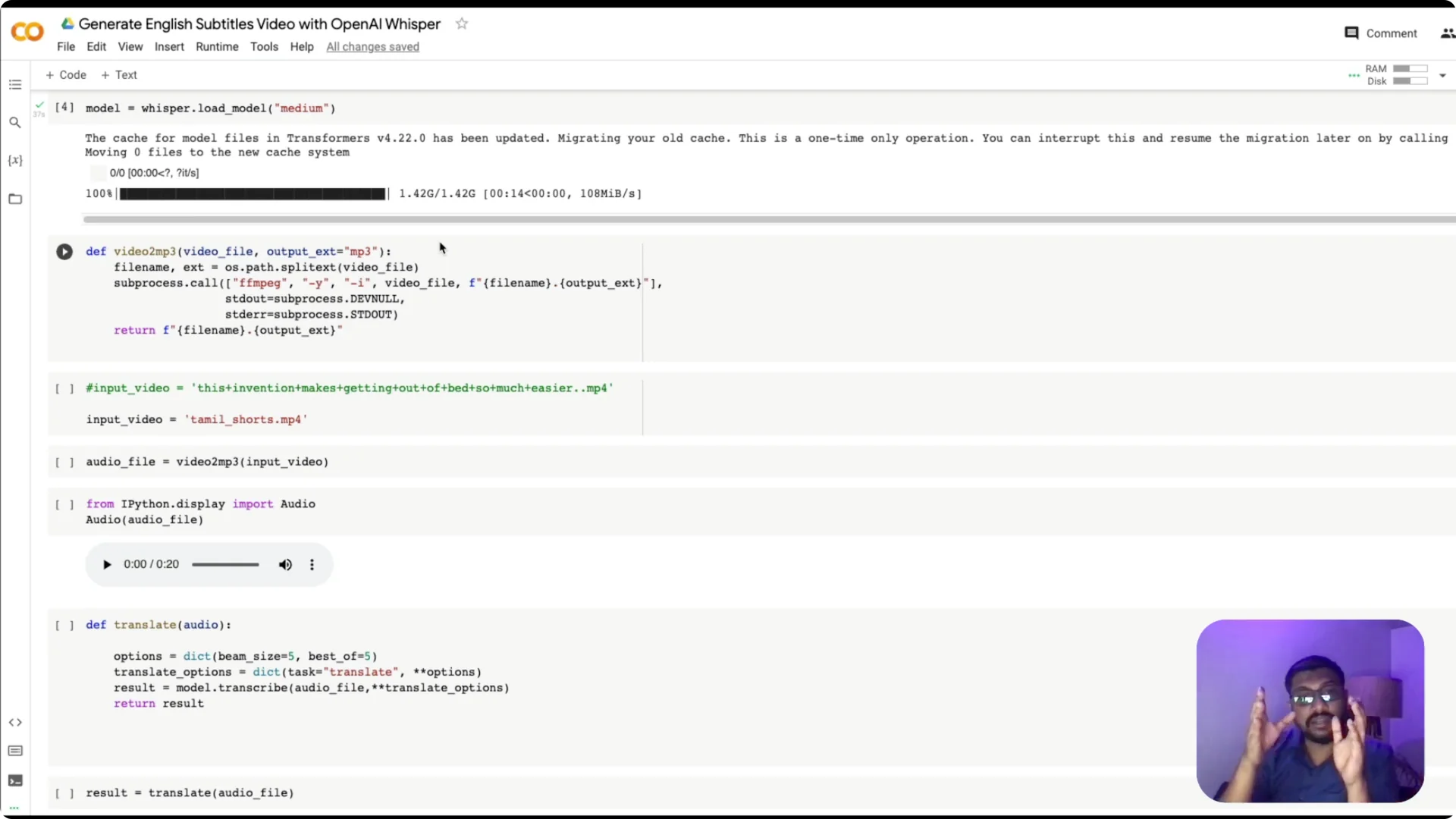
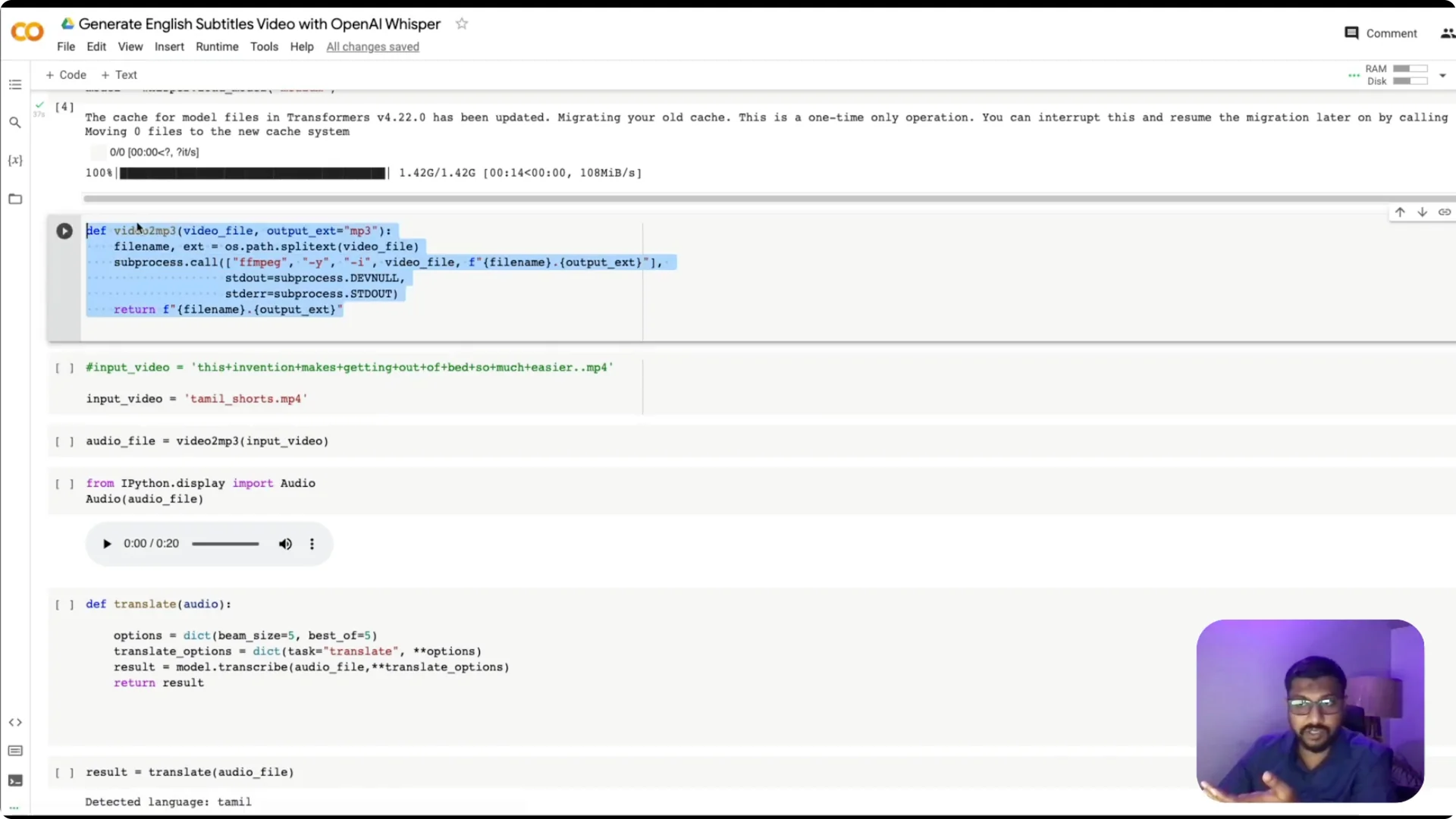
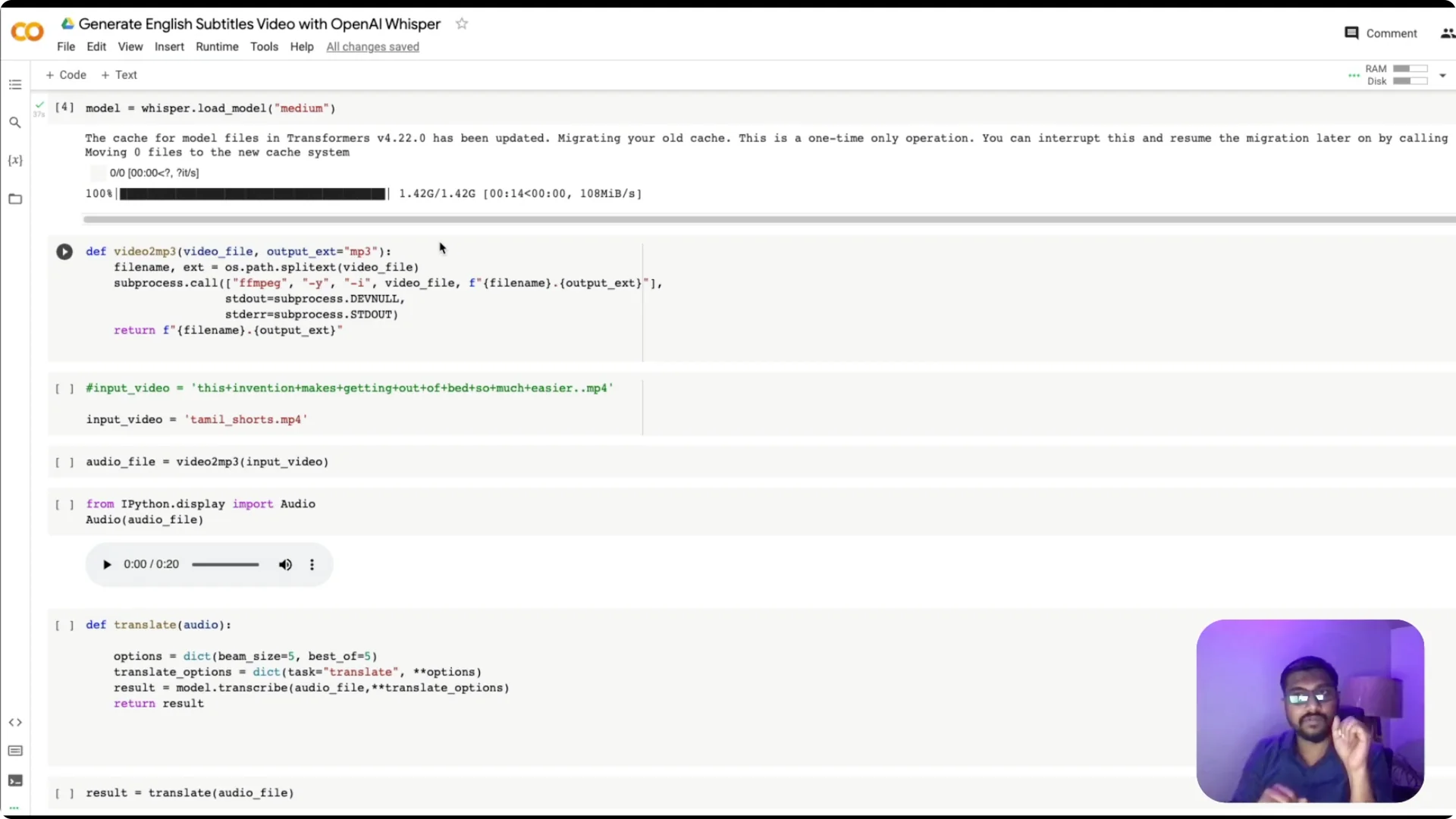
Use ffmpeg to convert the video, for example MP4, into an MP3 file. This is a straightforward command that extracts audio from the video.
I wrap it in a function that takes an input filename and returns the MP3 path so I can reuse it later.
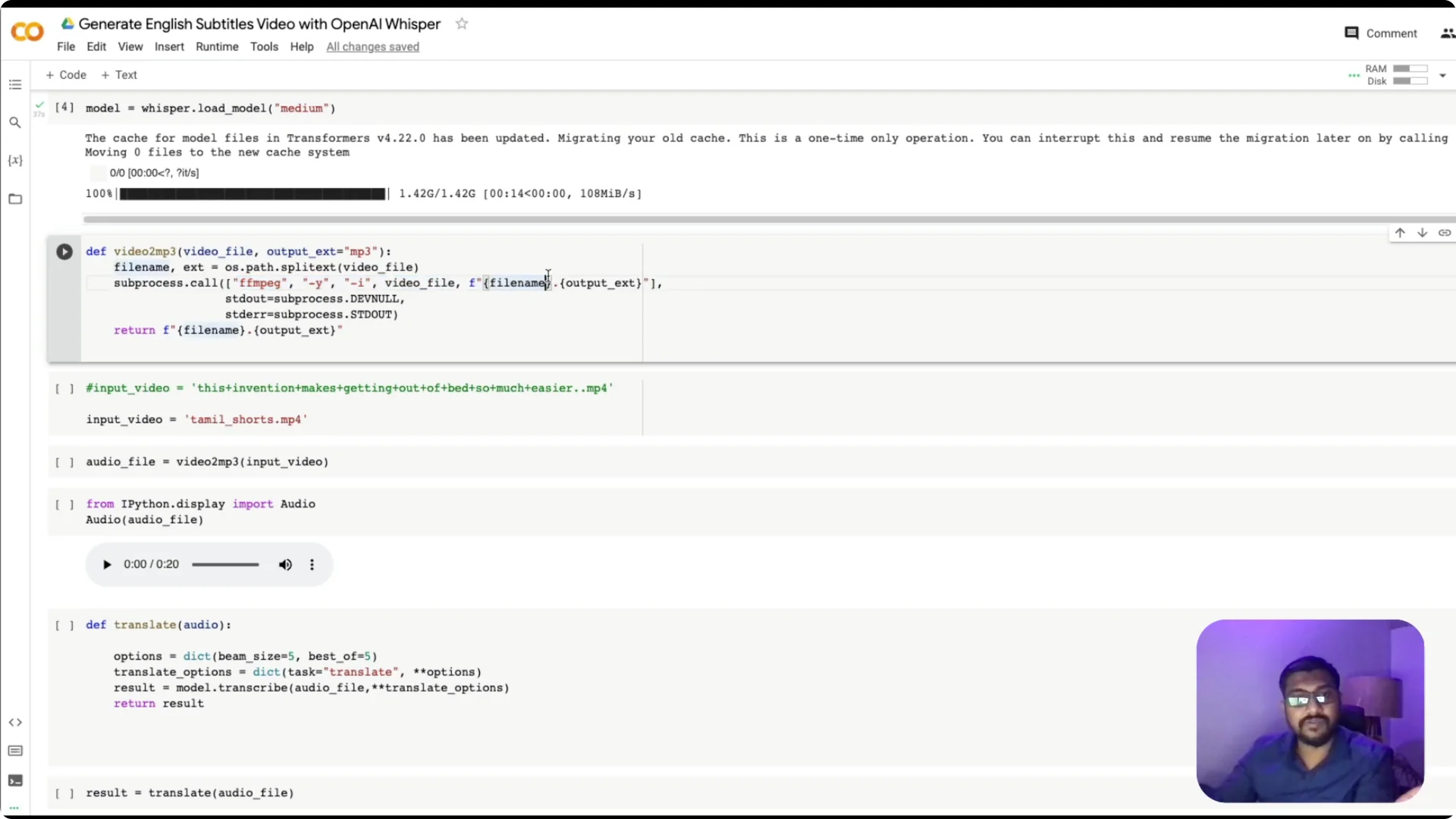
Because this runs on Colab, store files in the current session directory. The returned MP3 name is used in the following steps. You can quickly preview the extracted audio if needed.
Transcribe and translate with Whisper
Use Whisper’s transcribe function and pass the audio file. The key option is task=”translate”, which tells Whisper to convert any language into English.
If you skip this, the default behavior is same-language transcription like English to English or German to German.
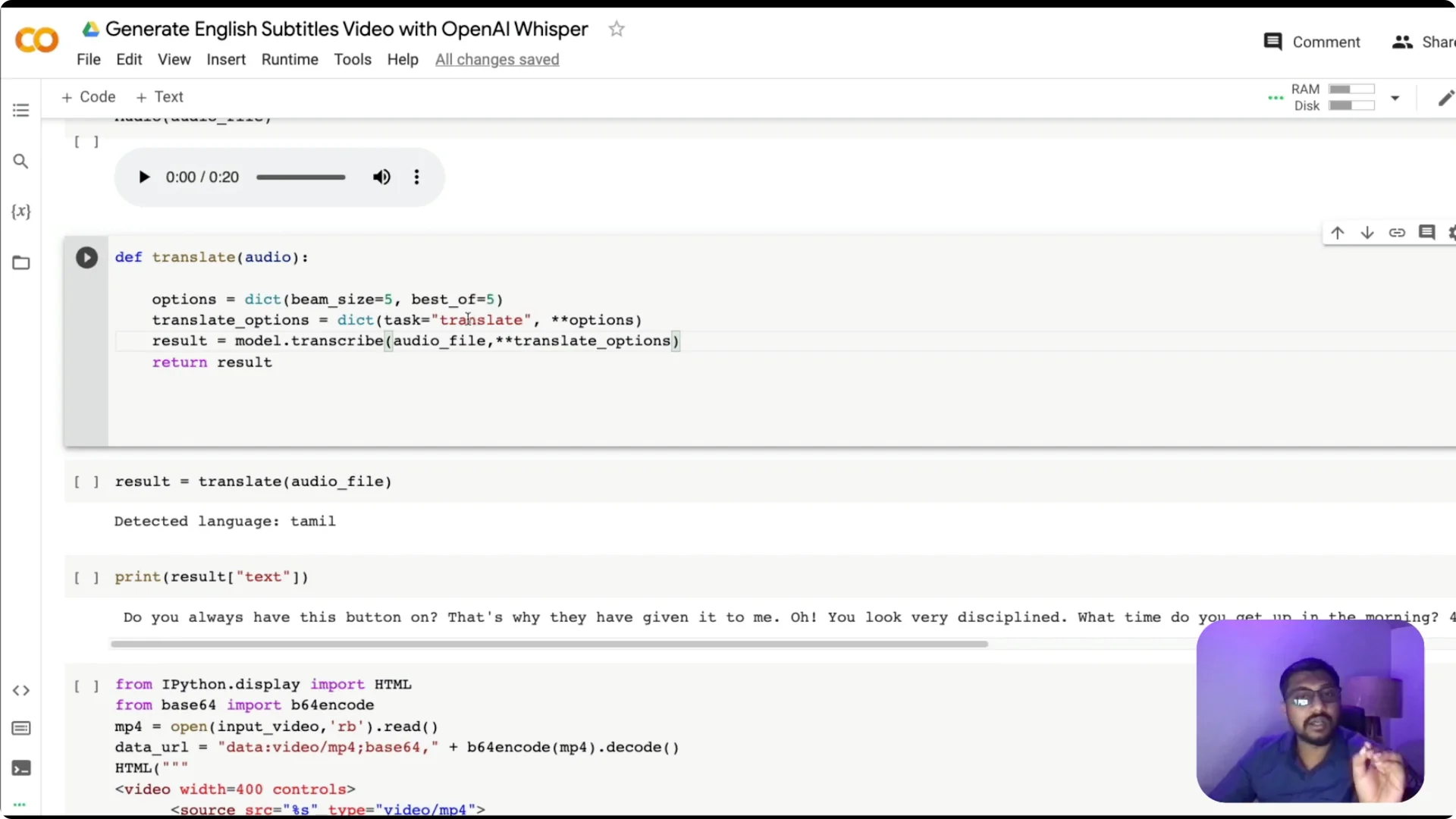
I usually load the base model on Colab. If you want better accuracy, try medium, keeping in mind larger models can cause Colab GPU memory to run out.
Check the device to confirm GPU availability, since inference on GPU is much faster than CPU.
Write a VTT subtitle file
Beyond raw text, we need subtitles with timestamps.
Whisper has a utility to write VTT using write_vtt. I take the MP3 filename, strip the extension, and save a .vtt file to the working directory.
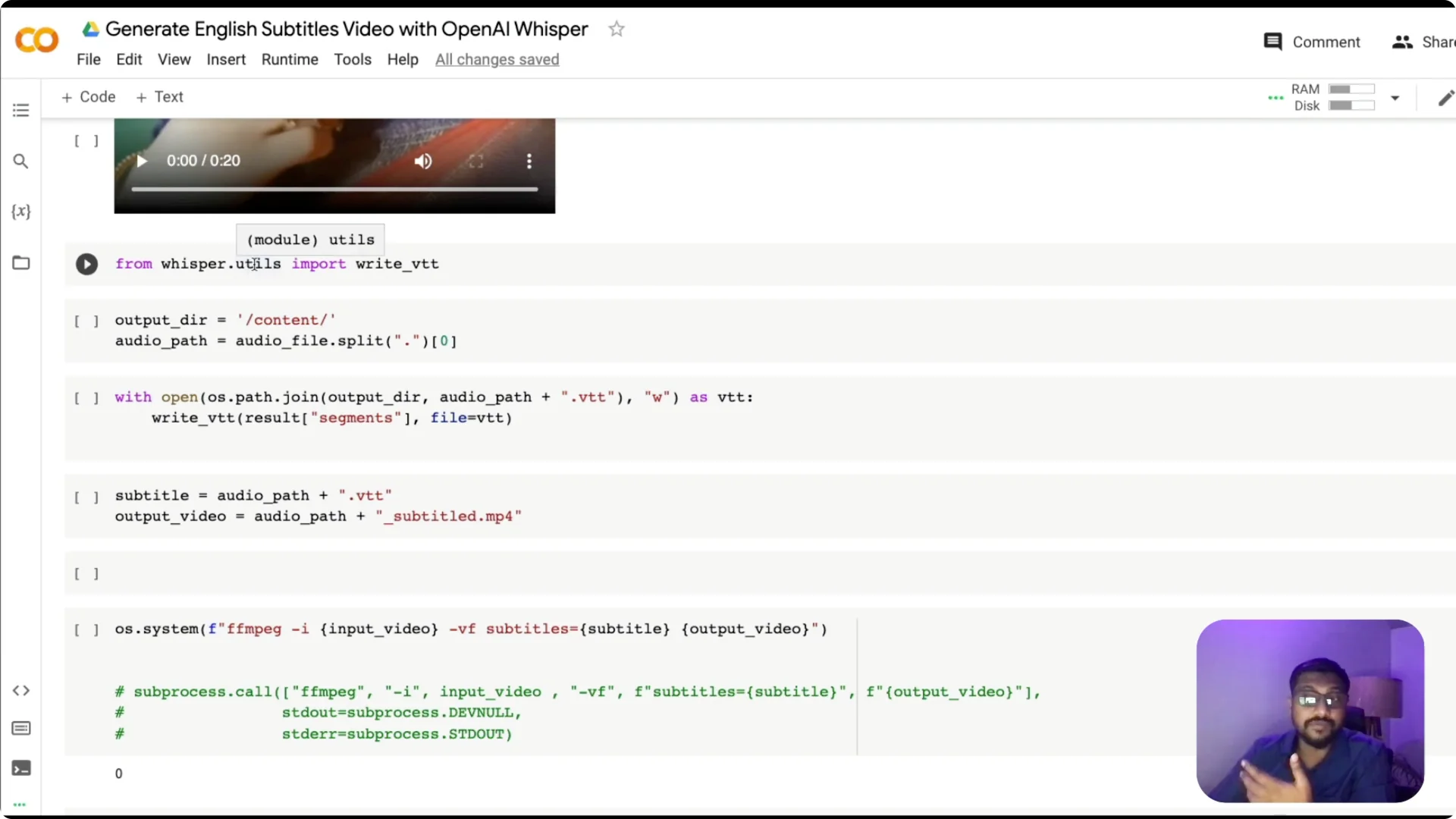
This file includes start time, end time, and the text for each segment. It is exactly what we need to burn subtitles into the video at the correct timestamps.
Burn subtitles into the video
Prepare three paths – the input video, the subtitle file, and the output video name.
Use ffmpeg to take the input video and the VTT file and produce a new MP4 with captions burned on top.
At the end of this process, you get a video with captions imprinted on each frame at the right time. This is what you typically see in many short-form clips.
OpenAI Whisper Video Captioning: Build in Google Colab
Enable GPU in your Colab environment for faster inference. Install the whisper library, load the model, and verify the device. Install gradio, which we will use for the web interface.
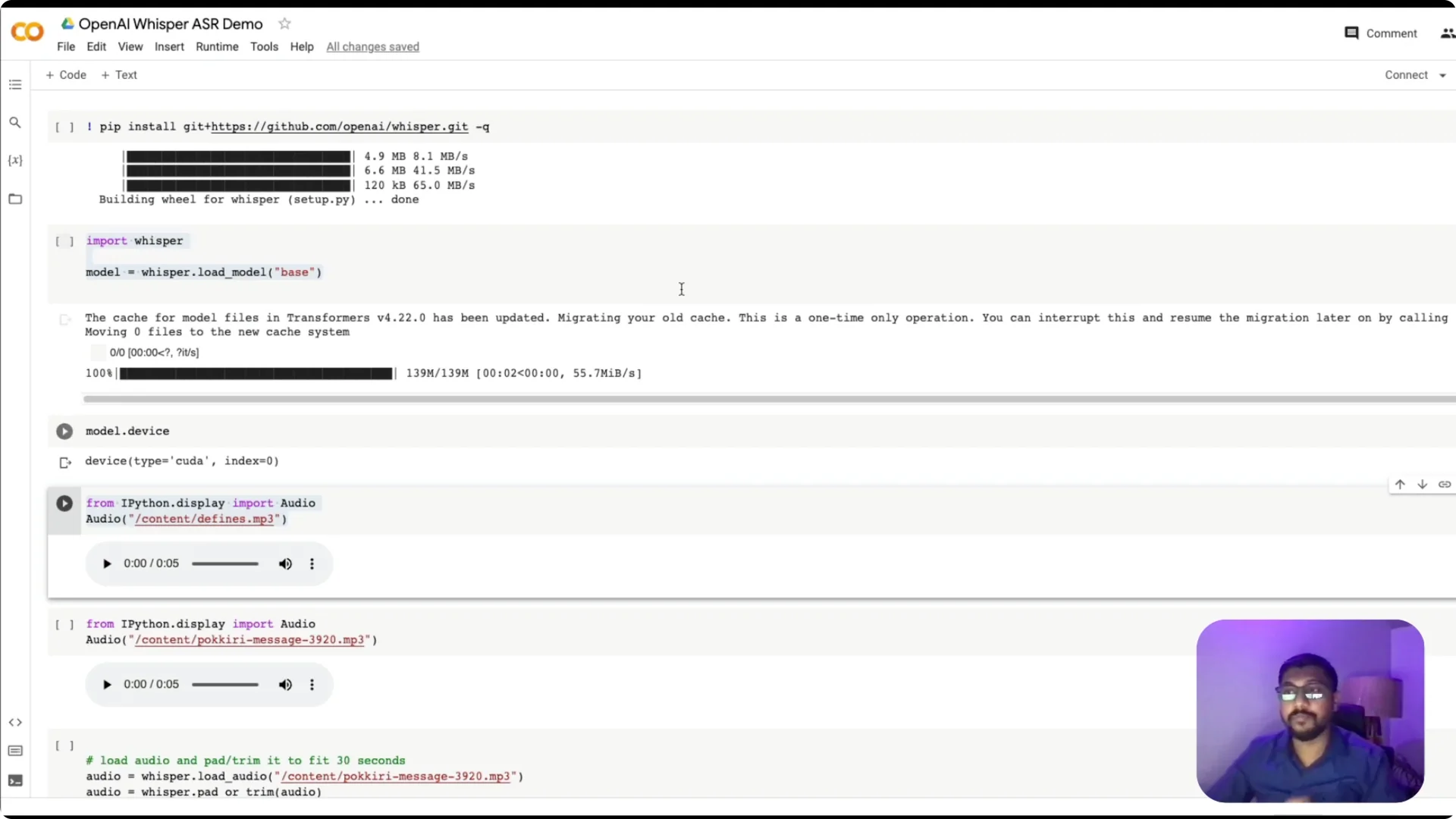
If you reference a video file by name in your code, make sure it exists in the Colab session.
Upload your test video to the /content directory using the file browser, and remember the session storage does not persist after the runtime ends. If you run top to bottom without uploading a file, you will hit a file not found error.
Create the Gradio app
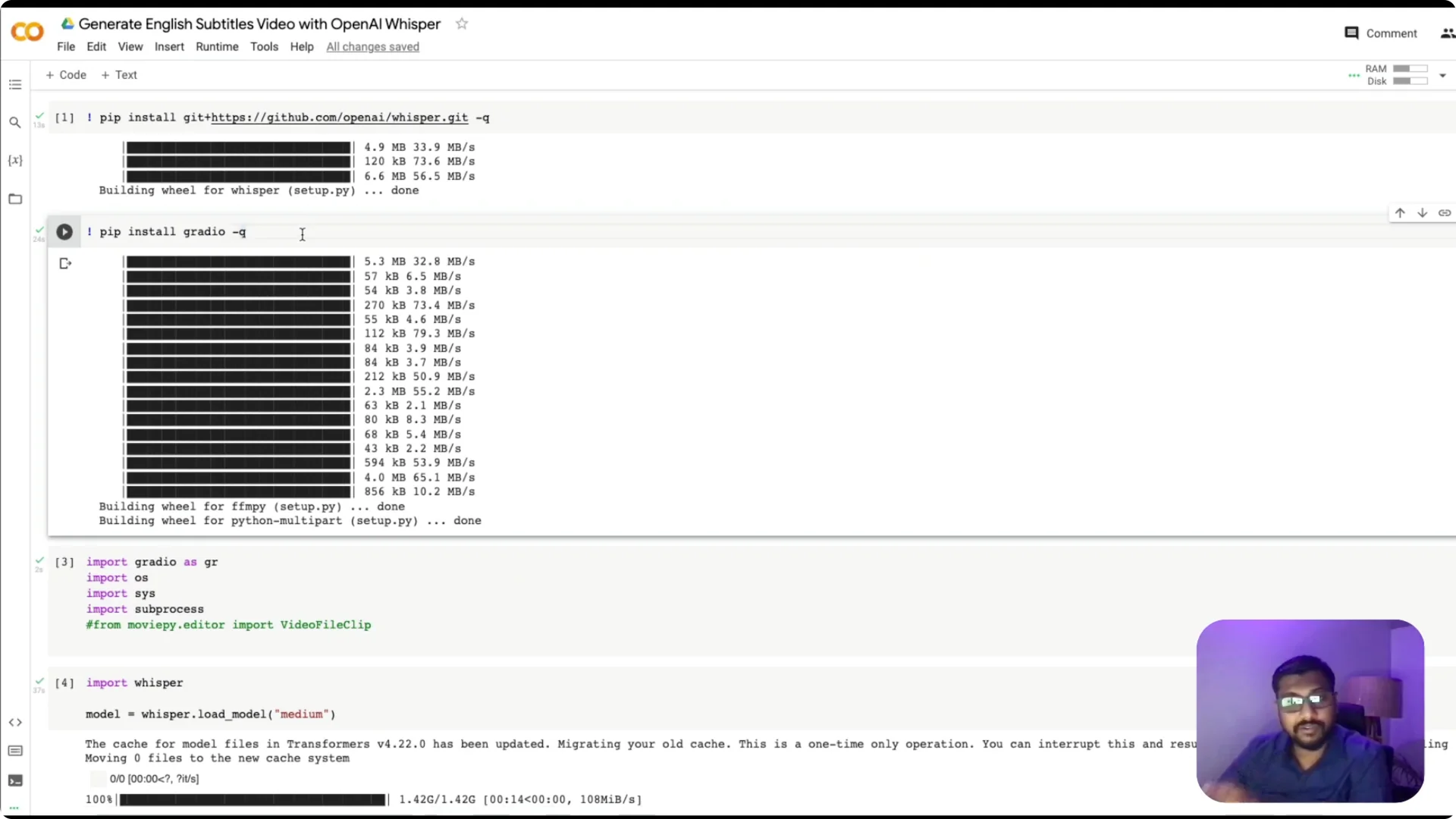
I created helper functions to convert video to audio, run translation, and write subtitles.
Then I wrote the routine to burn the VTT into the video with ffmpeg and return the output path. The returned path is used by Gradio to display the final video.
I used gr.Blocks with a group, box, and row. The row contains two components side by side – an input video and an output video – and a Generate button triggers the translate function.
Gradio handles upload for the input component and displays the resulting video for the output component.
If you are exploring related voice media tools beyond captions, see the Sadtalker tool. It pairs well with workflows around talking-head or voice-driven content.
OpenAI Whisper Video Captioning: Deploy on Hugging Face Spaces
For a permanent deployment, create a Space and select Gradio as the SDK. Add a requirements.txt with the needed Python packages and rely on ffmpeg from the Linux environment in the container. Copy your app code into the Space.
One important difference from Colab is to set fp16=False when calling Whisper on CPU. On Colab with GPU I set floating point precision to 16, but Spaces typically runs on CPU by default, so fp16 must be false. Expect longer inference time on CPU.
You can monitor logs in the Space to debug errors. Once the app runs, upload a video, generate captions, and download the output by saving the rendered video from the app.
If you want a complementary AI workflow, explore AI text-to-video as a next step.
Troubleshooting and Notes
If you hit missing file errors on Colab, verify the upload happened to /content and the filename matches exactly. Remember session files do not persist after the runtime disconnects. Use logs on Hugging Face Spaces to pinpoint dependency or model issues.
GPU on Colab makes a big difference in speed. On CPU in Spaces, expect processing to take a few minutes for short clips, but it works reliably. Once the video is ready, download and share the output.
Resources
Code repository: subtitle-embedded-video-generator. This includes the Colab-friendly workflow, Whisper usage, VTT export, ffmpeg caption burn-in, and the Gradio app.
Final Thoughts
This project shows how to build and ship OpenAI Whisper Video Captioning with an end-to-end pipeline on free tools. You can upload a video, translate speech to English, generate time-synced captions, and burn them into the final output. With Gradio for the UI and Spaces for deployment, it is simple to share and test your captioning app.