In this Python tutorial I’m going to show you how to do speech to text in just three lines of code using the Hugging Face Transformers pipeline with OpenAI Whisper. Automatic speech recognition is not a very simple task to do, but since Whisper came out there are a lot of applications being built because it is really good at what it does and it is multilingual.
I’ll use the Transformers pipeline to download the Whisper medium model from the Hugging Face Hub and run speech to text in a simple Google Colab notebook.
This walkthrough was prompted by an update announcing that the Hugging Face Model Hub added OpenAI Whisper in Transformers.
OpenAI Whisper is a speech recognition Transformer model trained on almost 680,000 hours of audio.
I put together a quick tutorial to make it easy to try.
Whisper Speech-to-Text with Transformers
I’m starting with a Google Colab notebook. Make sure you have a GPU runtime if you can, but if you only have a CPU it still works fine. GPU inference is faster, and I’ll show what to change if you do not have a GPU.
If you want a complete end-to-end example that mirrors this flow, see a step-by-step project with Whisper in Python.
Environment and installation
First, I check for a GPU with `nvidia-smi` to confirm I have a Tesla T4 machine. That’s good to go for faster inference. If you don’t have a GPU, you can still proceed.
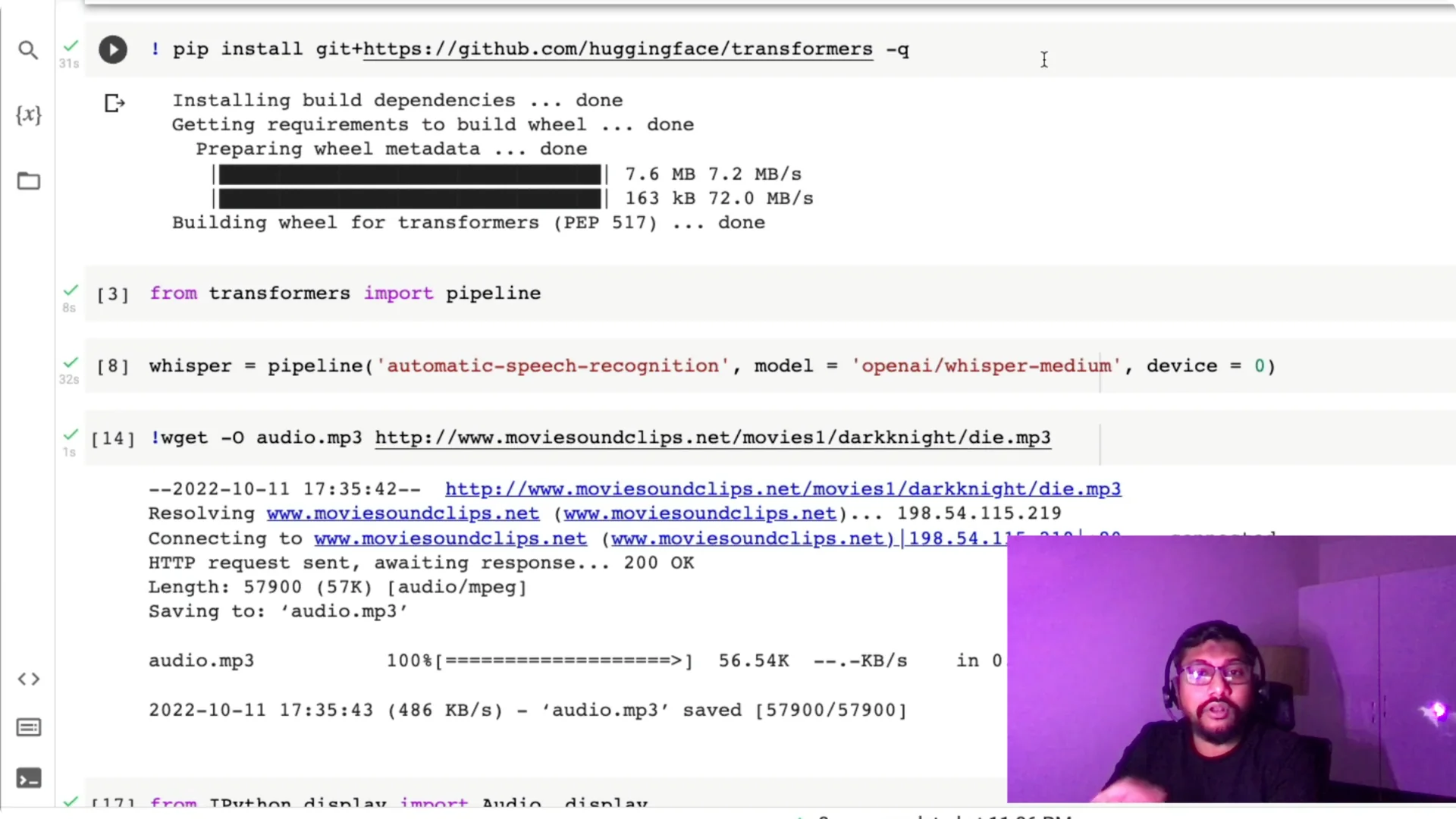
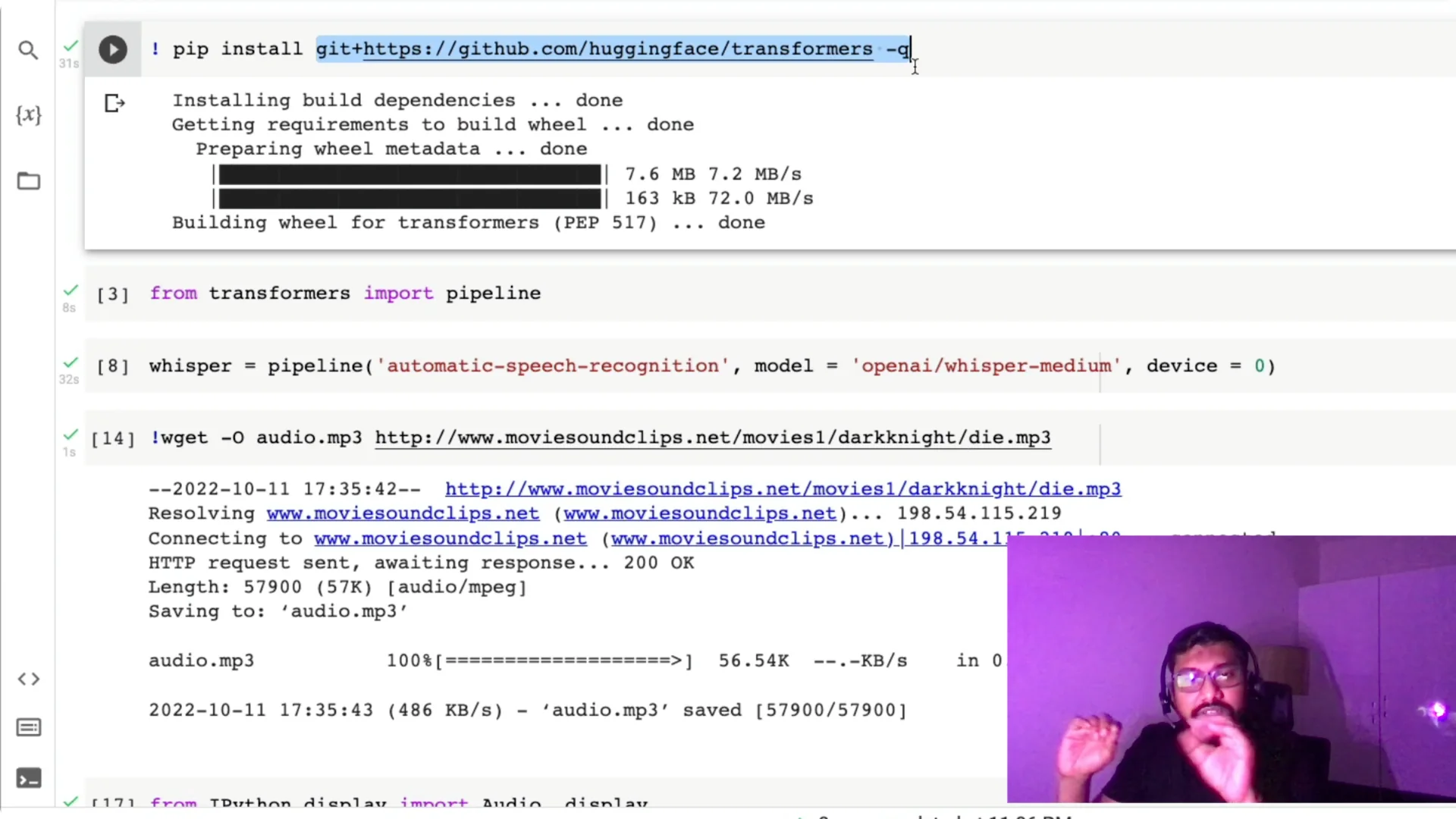
Next, I install the Transformers library directly from the Hugging Face GitHub.
Once installed, you generally won’t need to do this again in a deployment because you’ll pin it in requirements.txt or a config file.
Create the Whisper Speech-to-Text pipeline
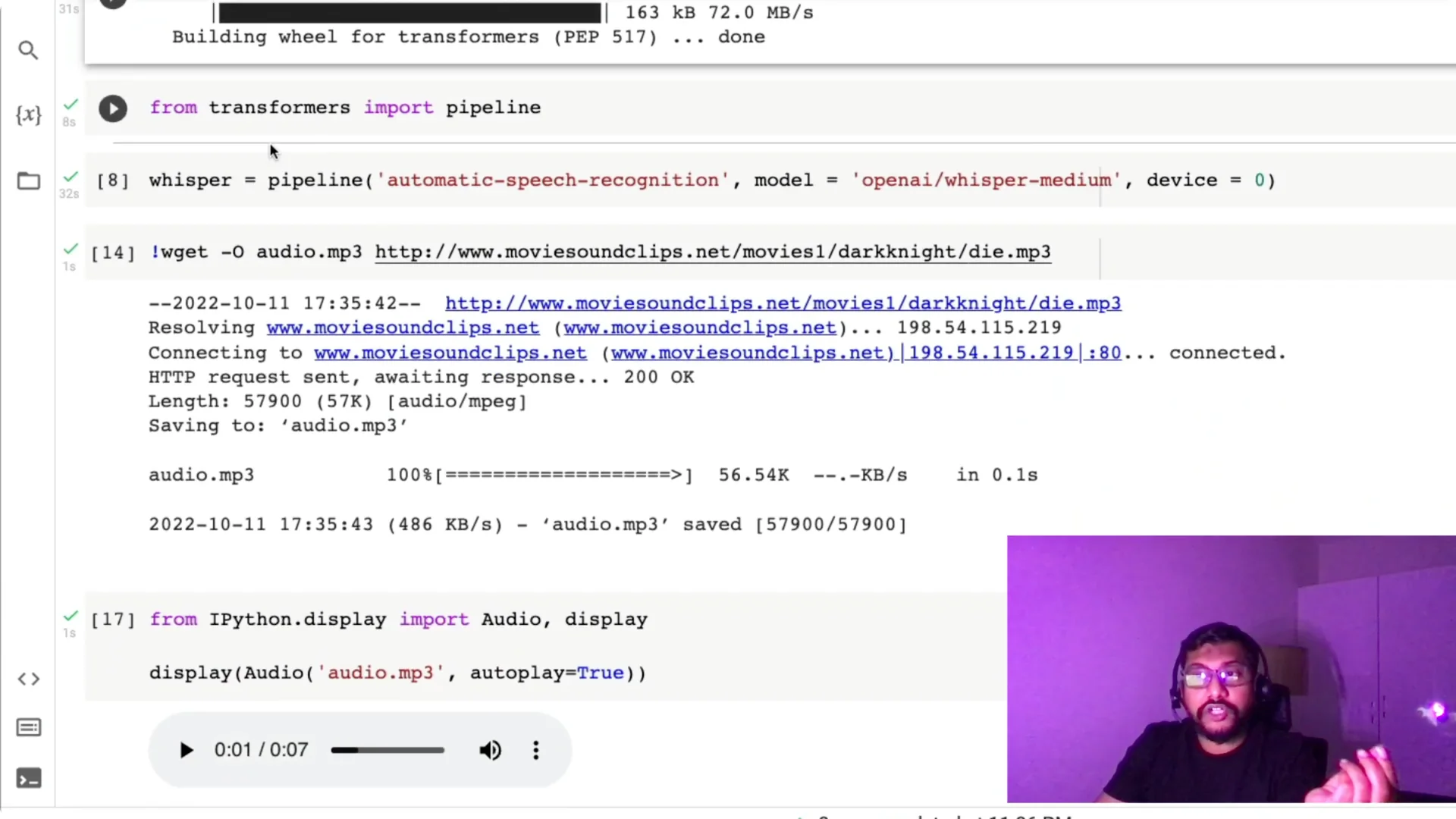
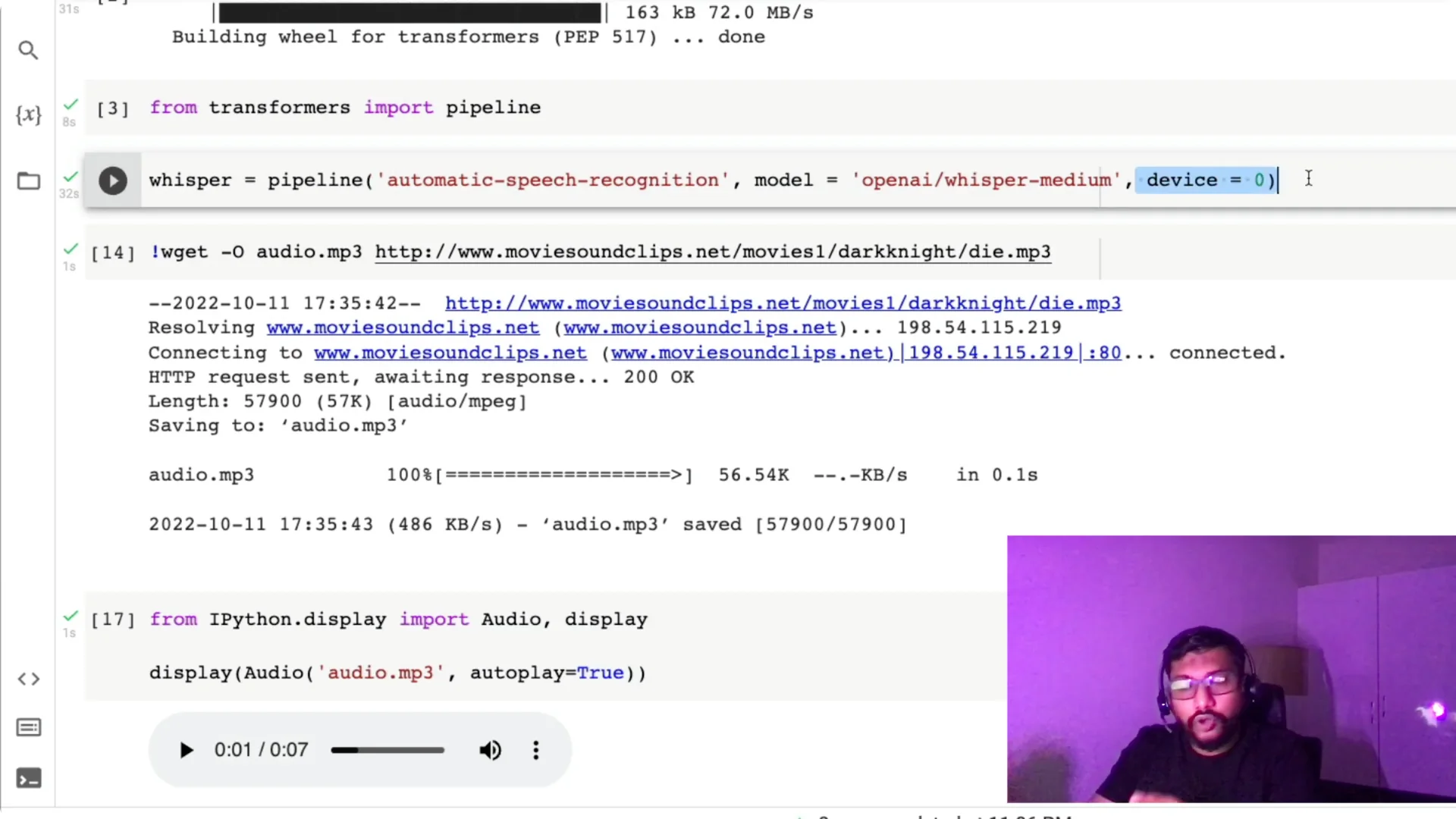
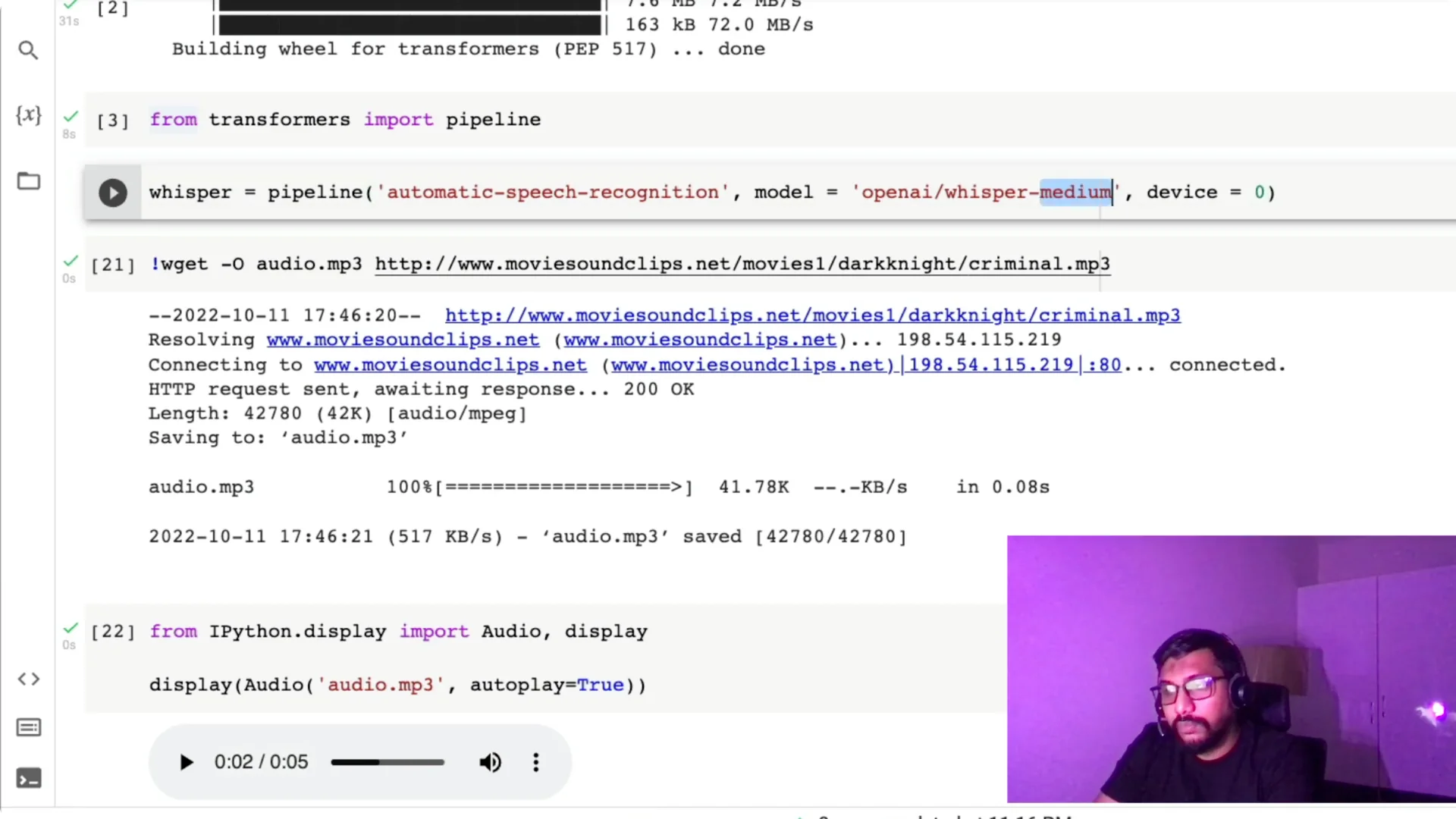
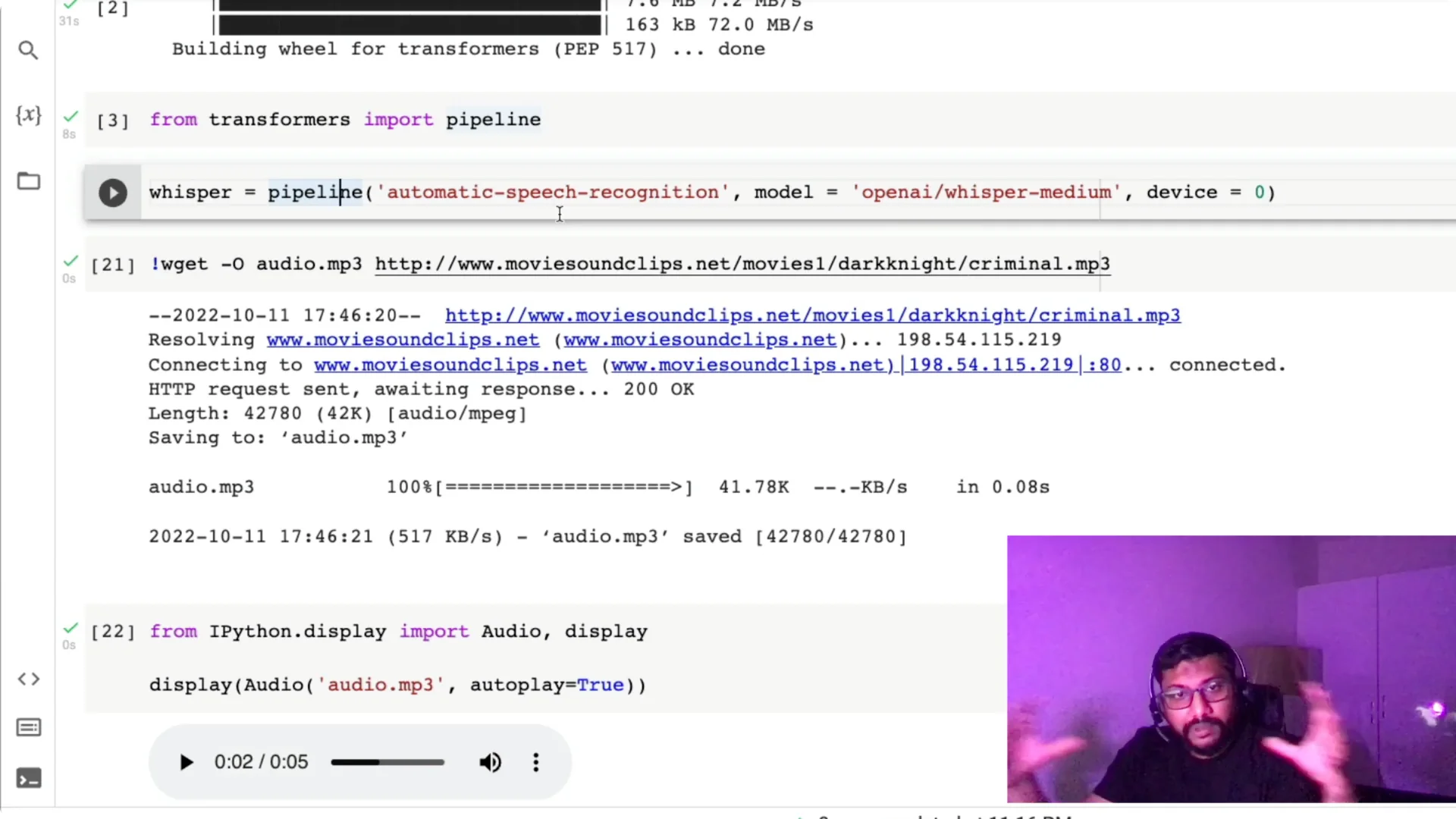
Import the pipeline with `from transformers import pipeline`.
If you’re familiar with pipeline, you know you can specify a task like sentiment analysis, text classification, or summarization.
Here we’re using the task `automatic-speech-recognition`.
Hugging Face pipeline already had ASR, but it wasn’t using OpenAI Whisper earlier.
Now that Whisper medium and large are available on the Hub, we can set the task and the exact model, for example `openai/whisper-medium`.
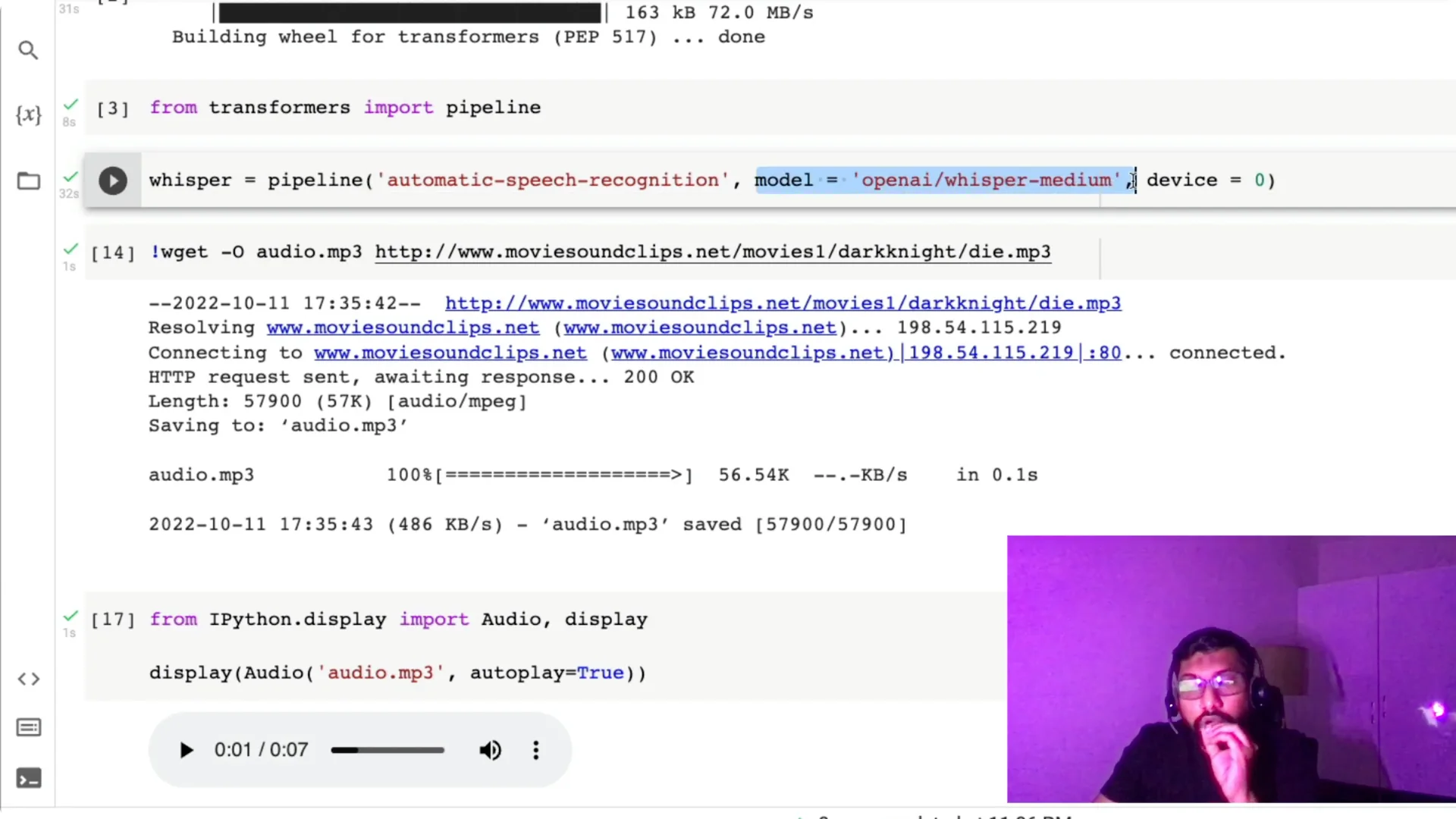
I’ve found Whisper medium to be a good trade-off between tiny and base, and you don’t always need large.
I also set `device=0` because I have a GPU; if you don’t have a GPU, just omit the device argument and it will default to CPU.
Input audio for Whisper Speech-to-Text
We need an input audio file to transcribe.
I pick a movie dialogue clip, copy the audio address, and download it in Colab with `wget` so it’s saved as `audio.mp3`.
Once the clip is saved, I preview it to confirm it works.
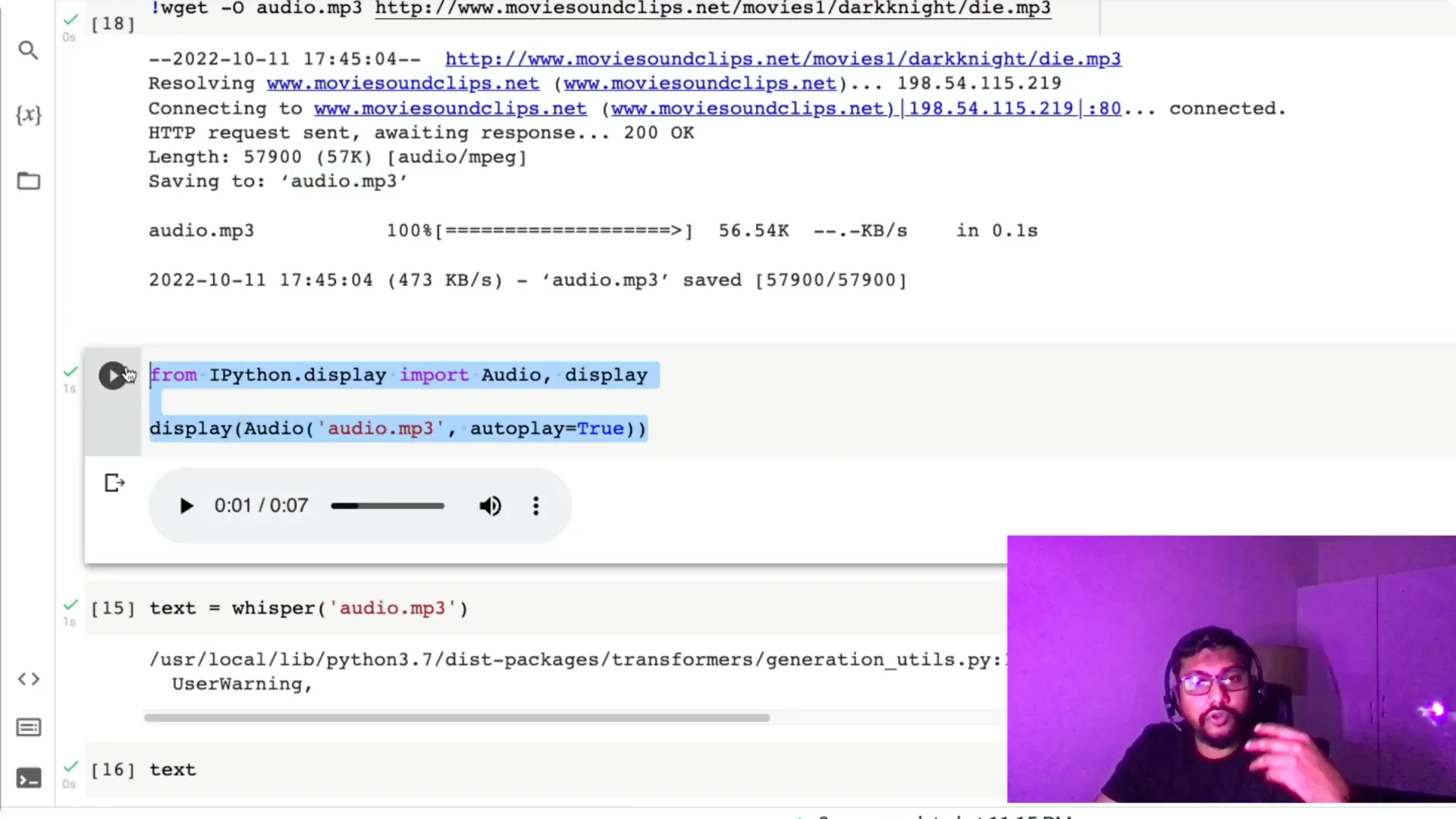
With the file ready, I pass `audio.mp3` to the Whisper pipeline and print the text output.
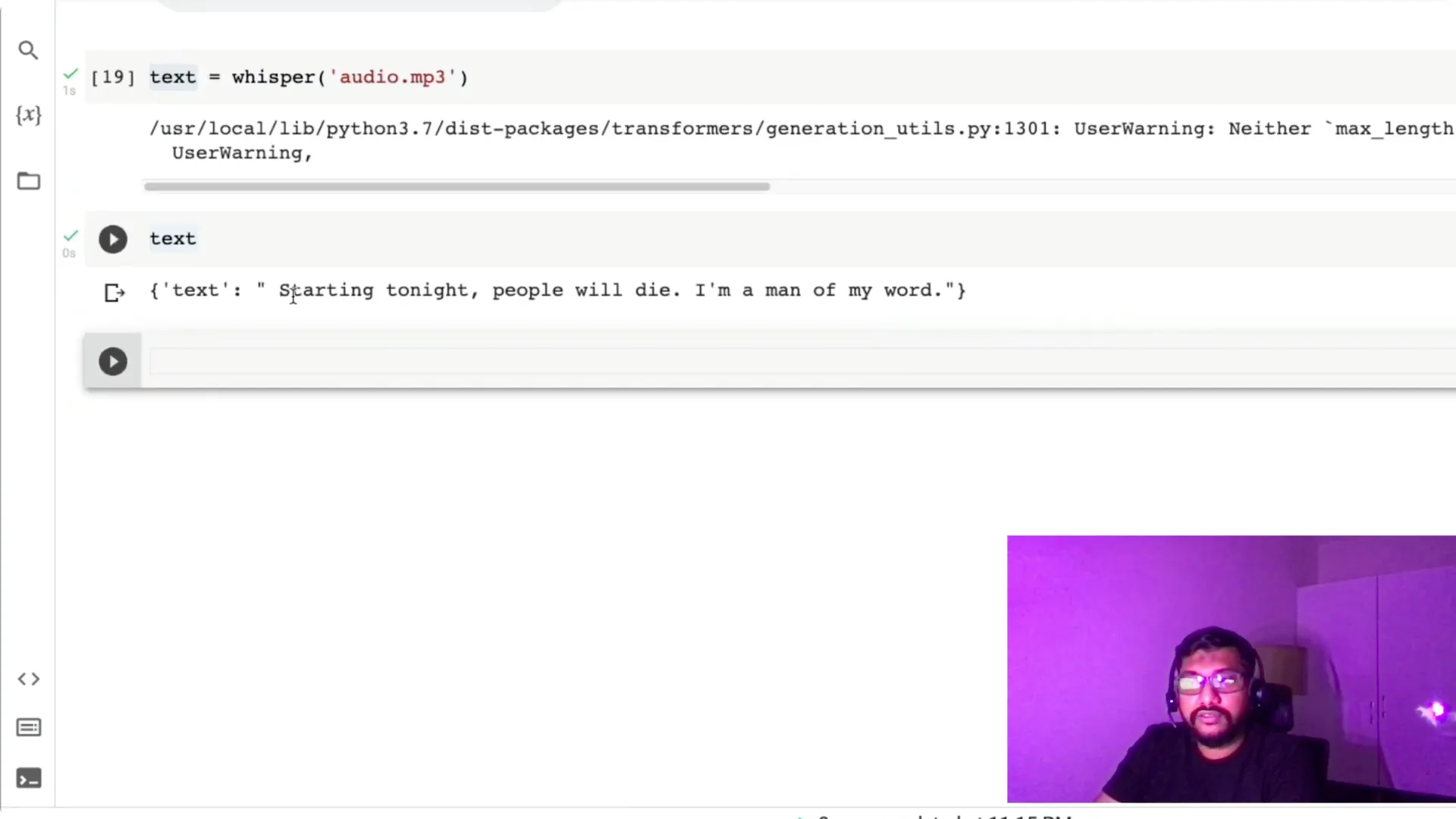
For more practical uses, see how this model works for subtitle generation in using Whisper for video subtitle captioning.
A second noisy Whisper Speech-to-Text example
I try another line: “This town deserves a better class of criminal, and I’m going to give it to them.” I download it the same way, run the pipeline again, and check the output.
It transcribes “criminal” as “crew” and repeats “to,” which is understandable because the audio is quite noisy and I didn’t do any preprocessing.
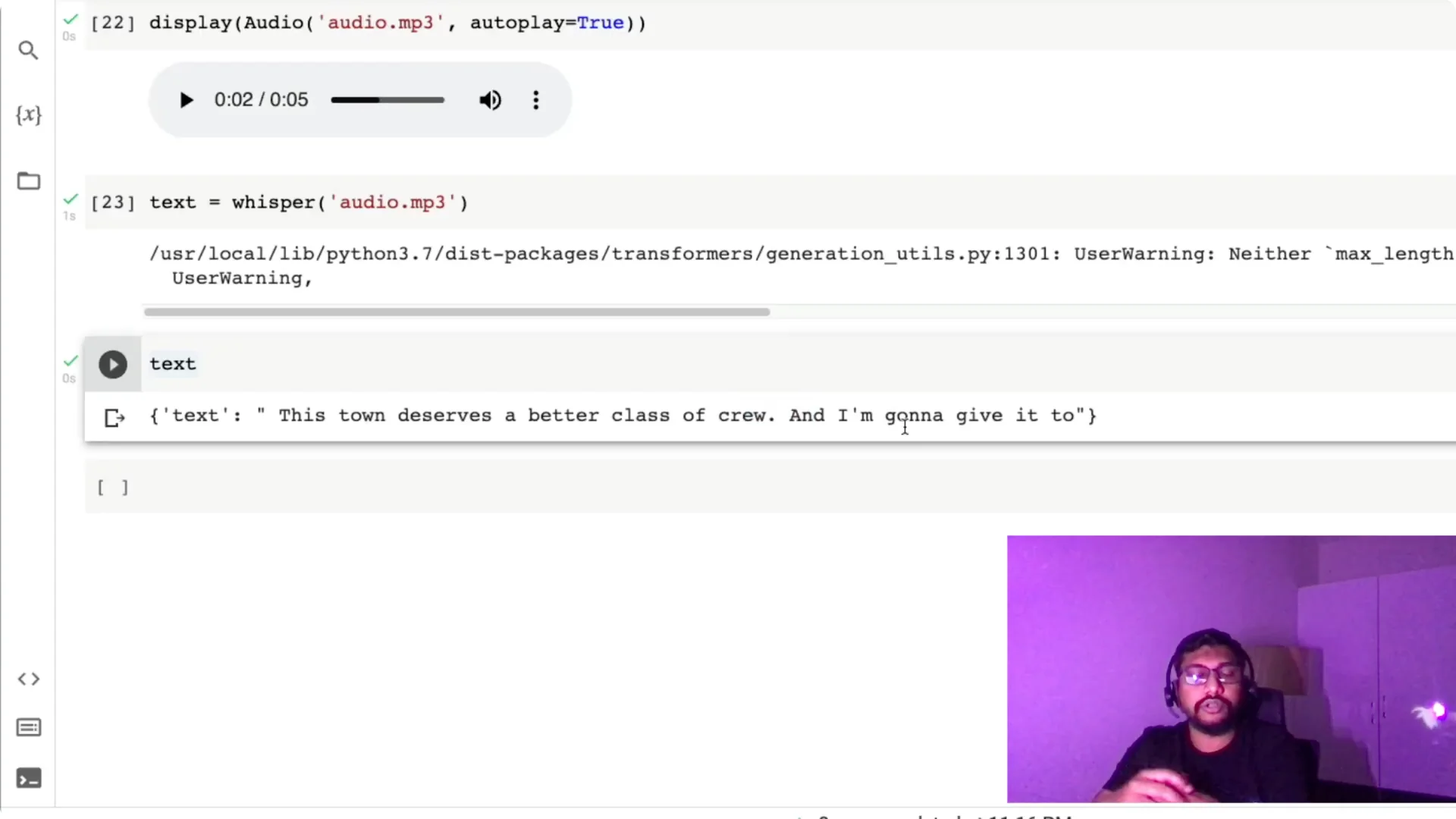
The takeaway is that Whisper still does well in tough conditions, but noise can affect certain words. Preprocessing can help if you need higher accuracy in very noisy clips.
Choose the right Whisper Speech-to-Text model
You can switch models based on your use case. Use `tiny`, `base`, `medium`, or `large` by changing the model name in the pipeline call.
Choose based on where you deploy and if you can run on CPU or need the accuracy boost from a larger model.
If you specifically need an English workflow with Hugging Face, here’s a focused resource on how to convert English speech to text with Hugging Face.
Three-line Whisper Speech-to-Text summary
Import the pipeline from Transformers. Create the pipeline with the ASR task, set the model to `openai/whisper-medium`, and set `device=0` if you have a GPU. Call the pipeline on your audio file and you have the text output.
Resources
Open the Colab notebook here: Whisper Speech-to-Text Colab.
Final Thoughts
Using the Hugging Face Transformers pipeline with OpenAI Whisper, you can get state-of-the-art speech recognition in just a few lines. It works on CPU, runs faster on GPU, and supports multiple languages. Pick the model size that fits your needs, give it an audio file, and read the transcript.