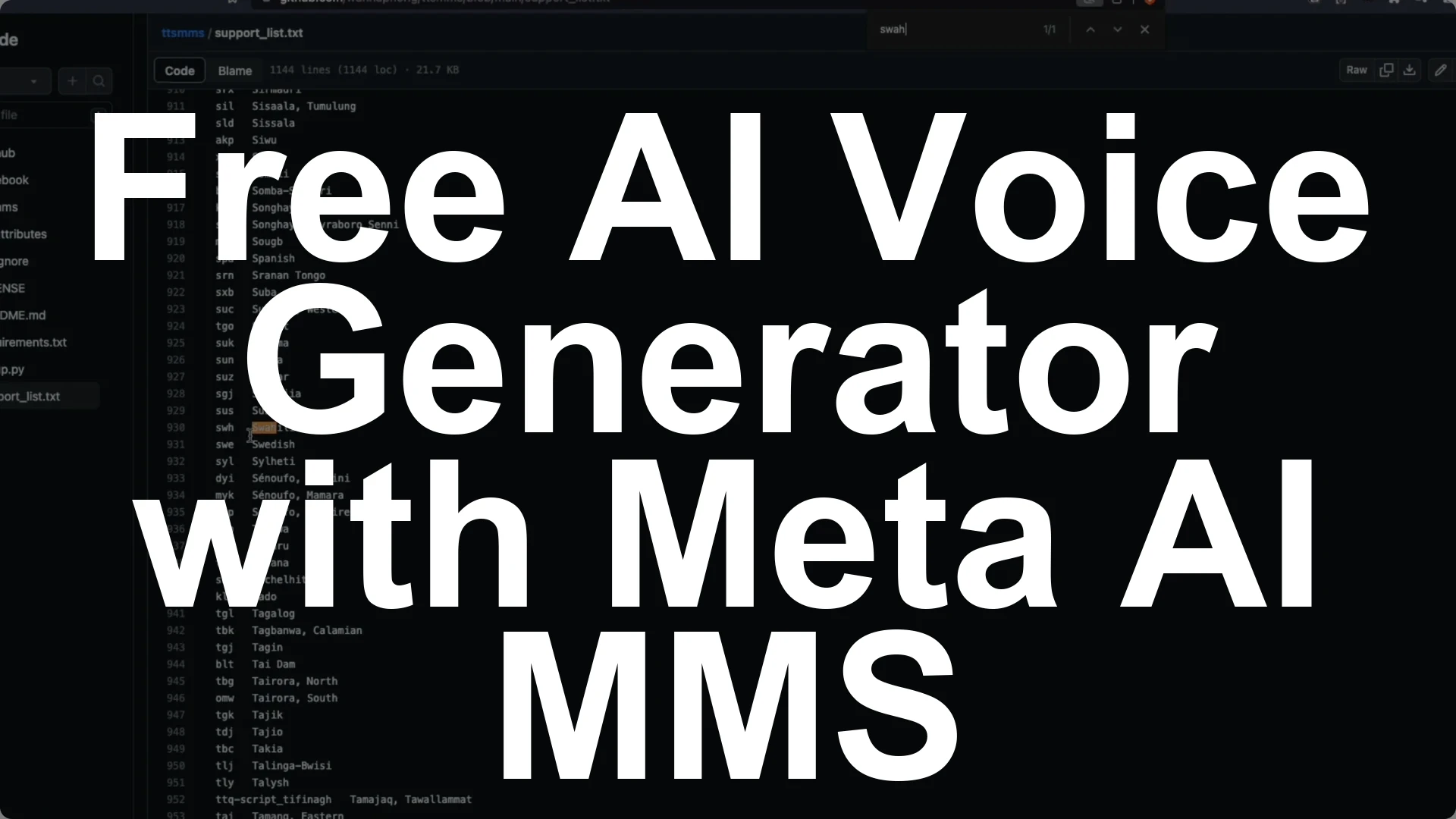
You can create AI voice in more than 1100 languages using Meta MMS Text-to-Speech. By the end of this guide, you will be able to input text, pick a language, and generate natural-sounding speech. I will show the exact steps I use in a Google Colab notebook, and you can adapt them to your machine too.
Meta MMS Text-to-Speech has three main parts. It can do speech to text, text to speech, and language identification. Language identification supports more than 4000 languages, while text to speech and speech to text support around 1100 languages.
For this setup, I use an open source library called TTS MMS that works with the Massively Multilingual Speech project. You can browse the full list of supported languages in that project and follow the steps to get started. I will use this library in Google Colab and explain the lines you need to change.
Meta MMS Text-to-Speech components
Speech to text converts audio files into text. Text to speech takes text and generates AI voice. Language identification detects the language of the input audio.
If you want a deeper model overview, check out this explanation of the Meta MMS model here: Meta MMS overview. It provides context on how the multilingual support is structured. It will help you understand what to expect across languages.
Meta MMS Text-to-Speech setup in Colab
Open this Google Colab notebook to follow along: Colab notebook. Run all cells once to confirm your environment is ready. After the first run, you can replace the language and text.
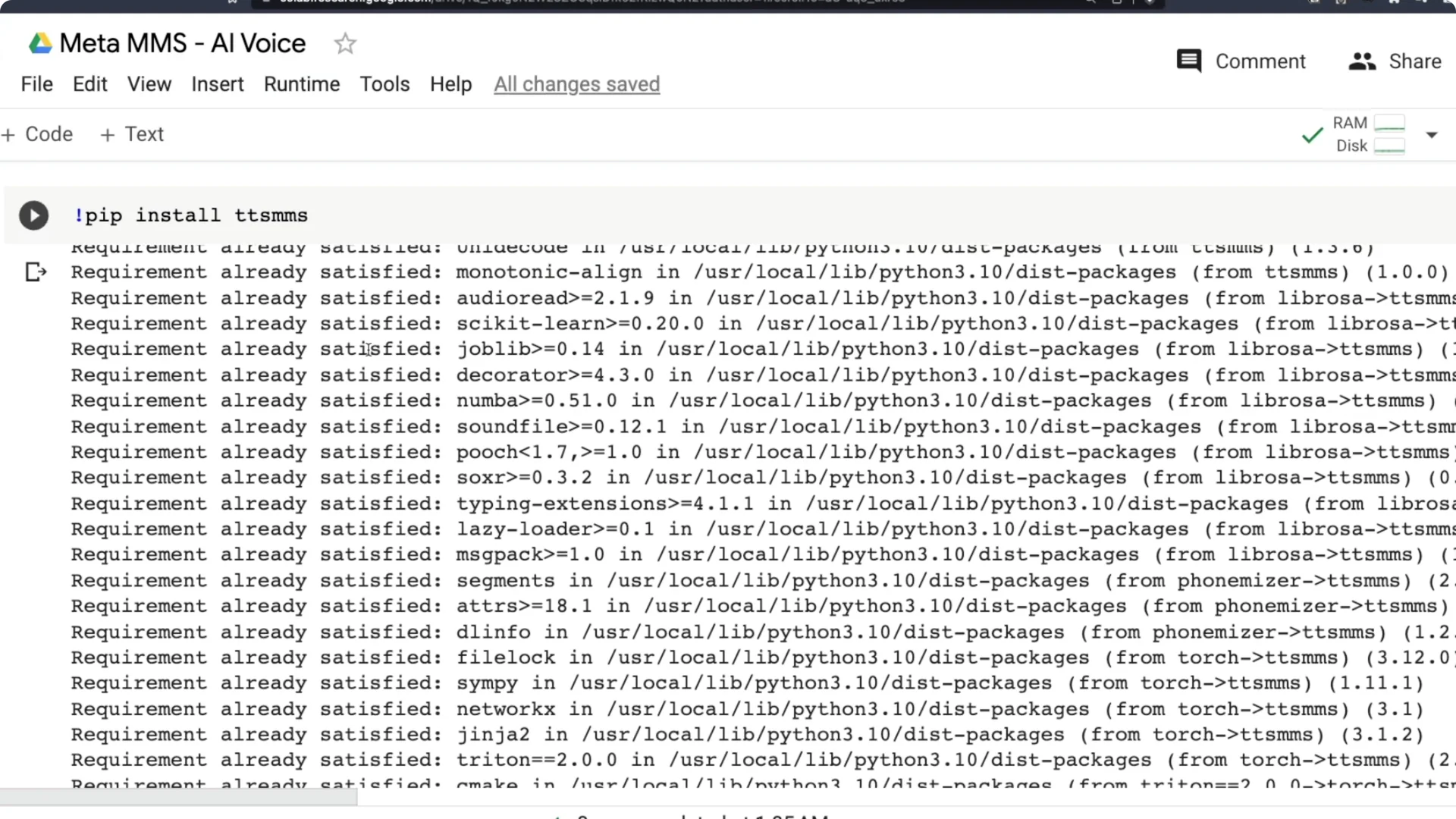
Install the library
Install the TTS MMS library. This library does text to speech AI voice creation with Meta MMS. Once installed, you will download a language model.
You can also review the library here: TTS MMS on GitHub. It includes supported languages and usage notes. Keep it open for quick reference.
Pick your language code
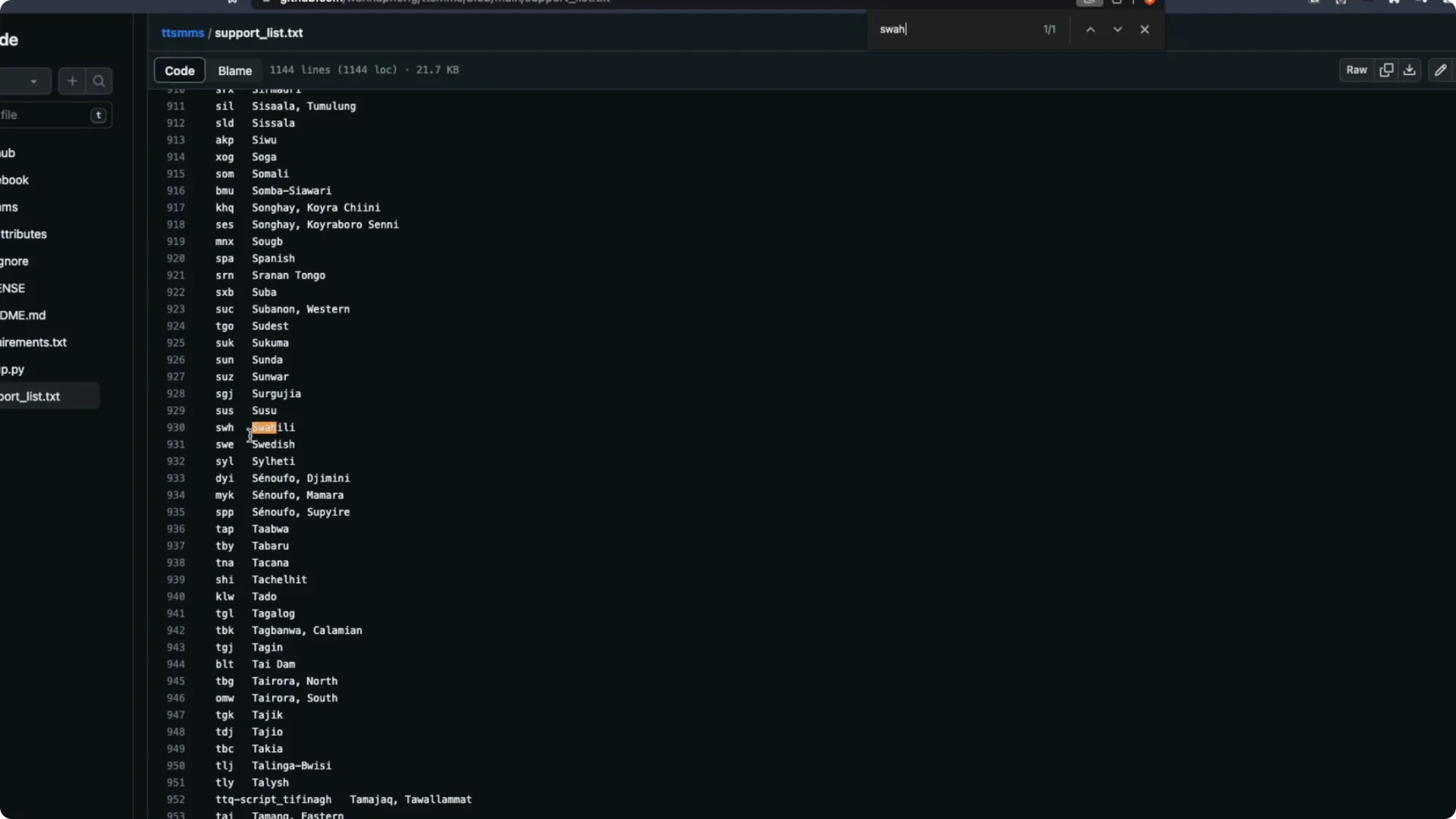
Before downloading a model, pick the language code you want to use. The language code is a three-letter code like tam for Tamil, mal for Malayalam, or swh for Swahili. Search the supported list, find your language, and note its code.
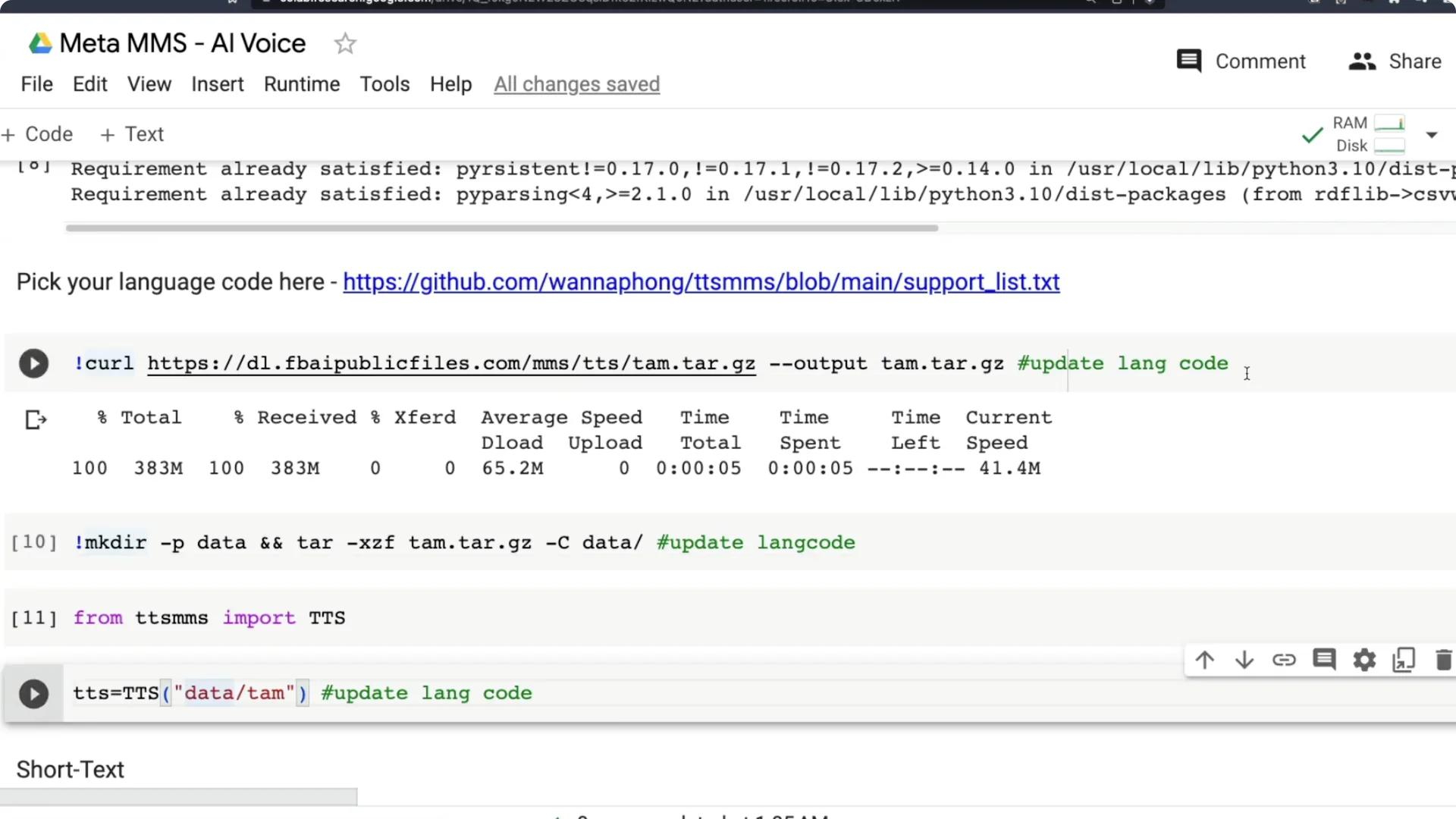
This is the most critical part of the setup. There are three places in the code where you must update the language code. I have marked them as line number one, line number two, and line number three.
Download and prepare the model
Update the first occurrence of the language code where the model name is set. The model you download will start with the language code, so you must provide the correct code there. For example, for Tamil I use tam, for Malayalam I use mal, and for Swahili I use swh.
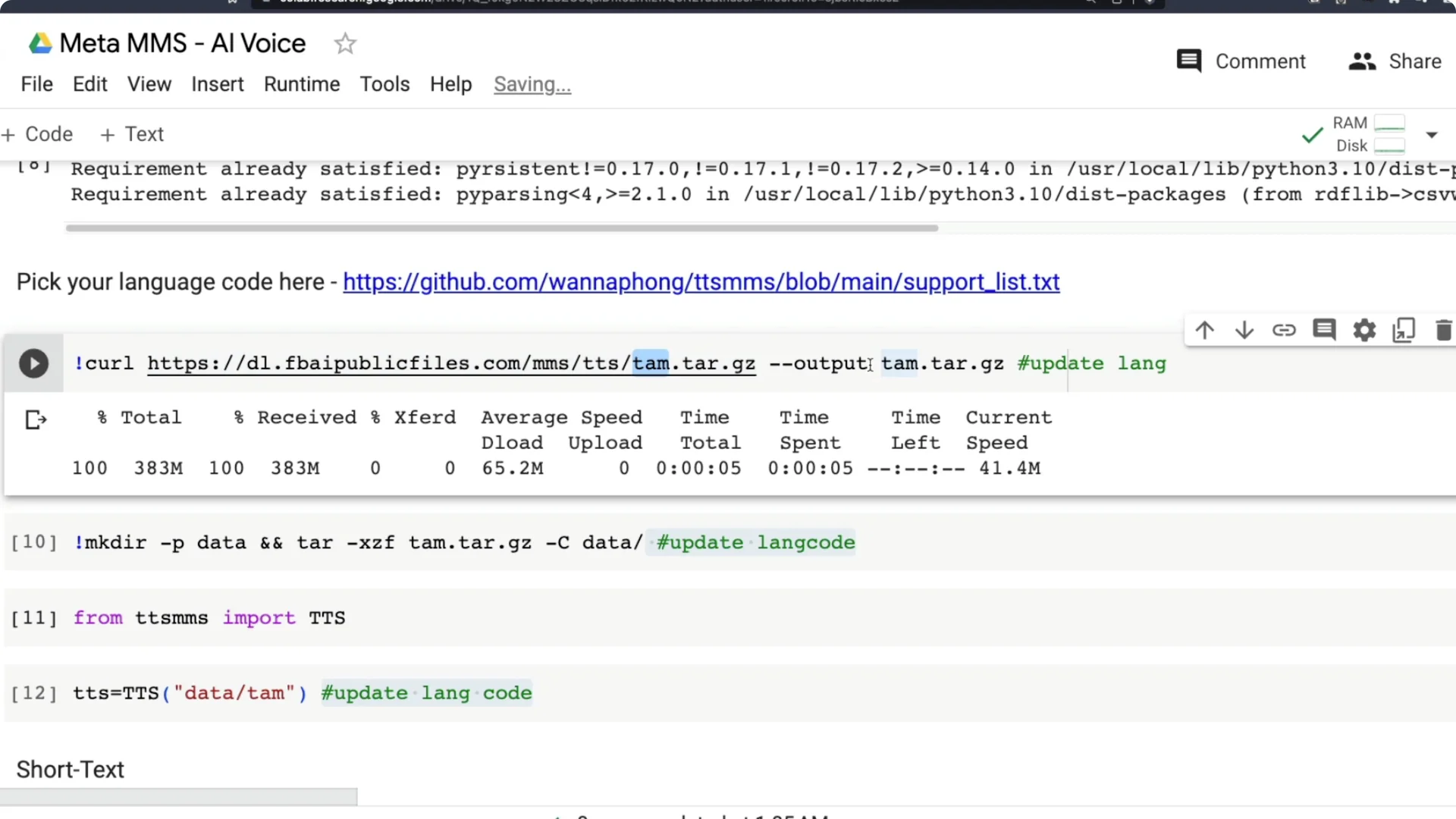
This line downloads the model from its URL. The next part sets the local filename where Colab will save it. Make sure the filename also uses the correct language code, like tam for Tamil.
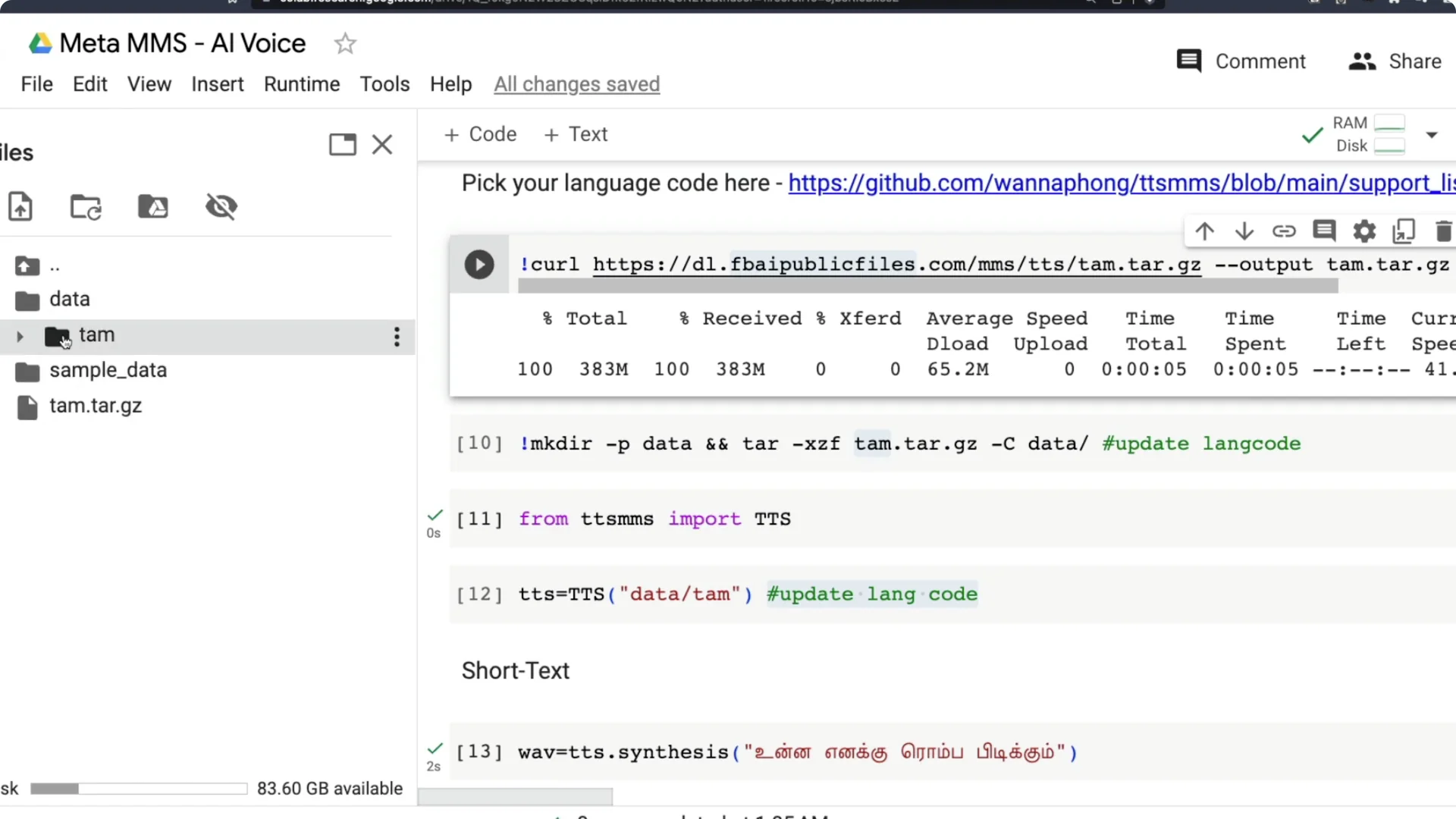
After download, unzip the archive into a data folder. Inside data, create a folder named with the language code and extract the model files there. Confirm that data/tam or data/mal or data/swh exists and contains the model details.
Initialize Meta MMS Text-to-Speech
Import TTS from the TTS MMS library. Create a TTS object by pointing to the folder where the model was extracted, like data/tam. This instantiates a text to speech engine for your chosen language.

This exact code will work on a local machine too. On Windows you might need small path adjustments, but the Python code should work otherwise. Colab is the fastest way to try it.
If you want more free and open source text to speech options, see this guide: open source TTS tools. It includes tools that pair well with Meta MMS. You can mix and match based on your workflow.
Generate speech from short text
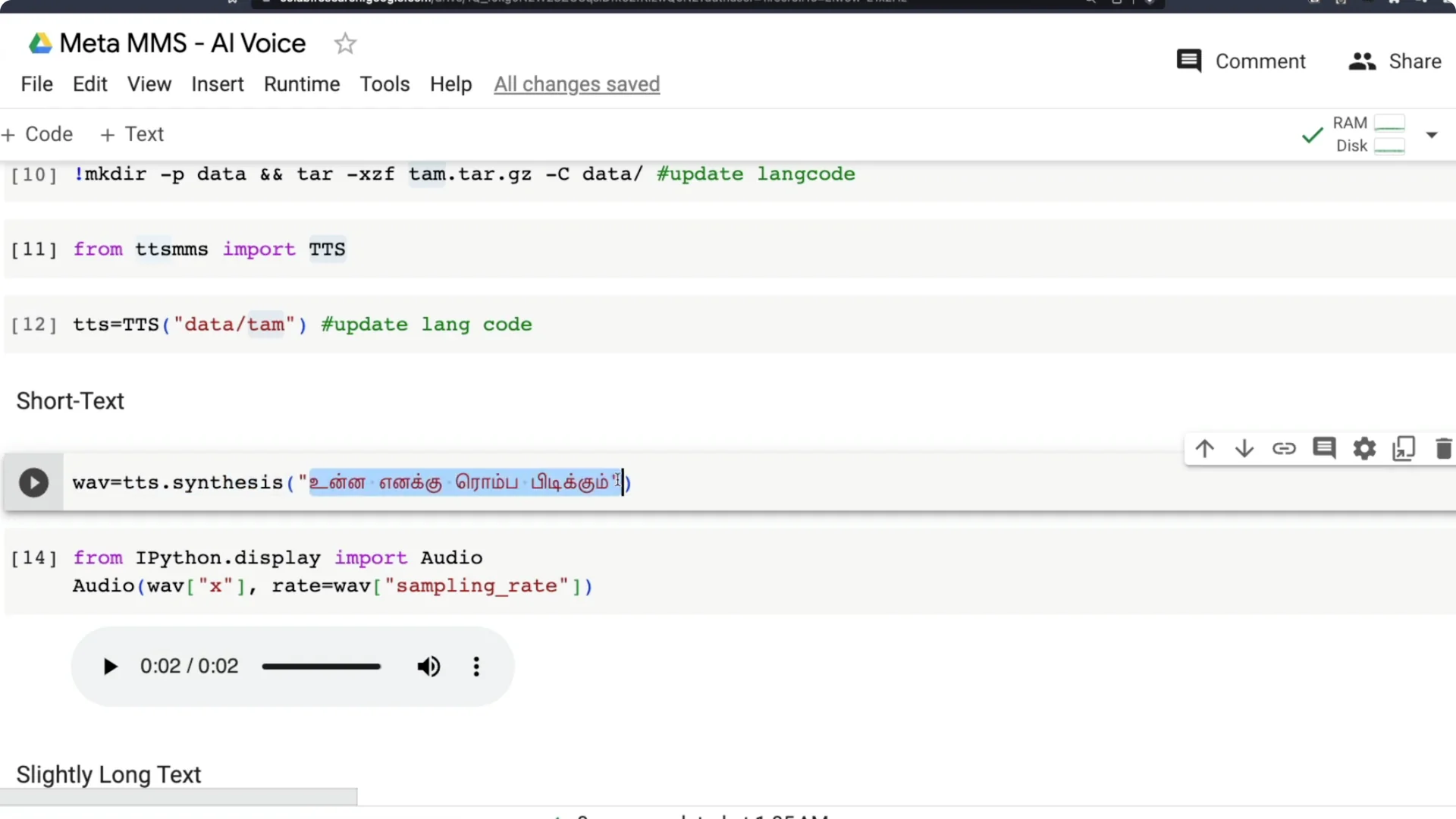
Call tts.synthesis with a short text in your selected language. For Tamil, I tried a colloquial sentence rather than a formal literary one. I wanted to check if the model handles everyday phrasing, not just bookish text, and it did a good job.
Generate speech from long text
I tested a longer Tamil passage by copying a block of text from Wikipedia. It took about 58 seconds to process, which is reasonable for the length. The output quality was solid and worked well for me.
Repeat the process for another language
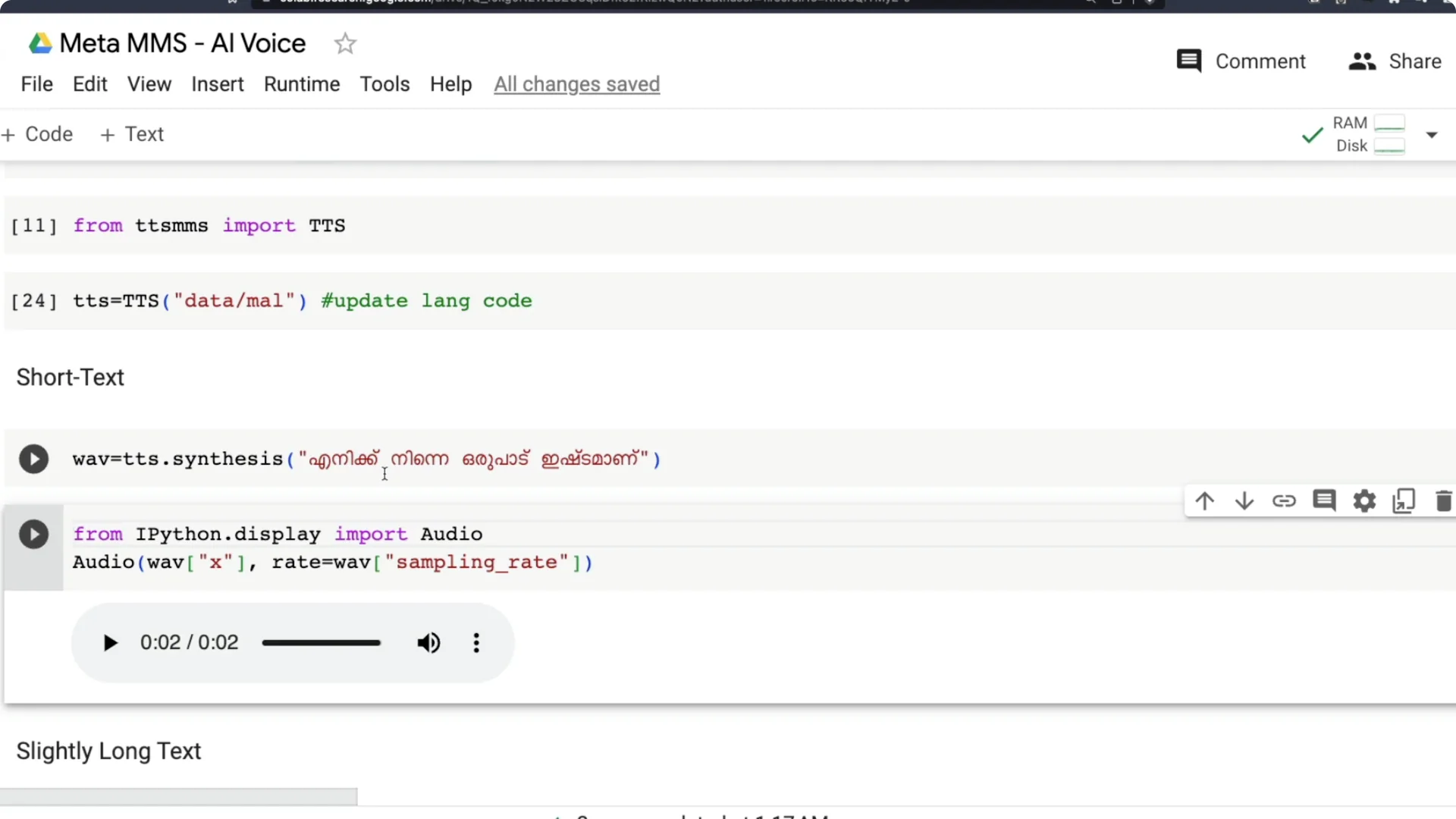
I repeated the same steps for Malayalam. I changed tam to mal in all three lines, ran the cells, and let the new model download. A new Malayalam folder was created inside data, and the files were extracted.
I do not speak Malayalam, so I used Google to draft a simple sentence like I like you a lot. I pasted that Malayalam text into tts.synthesis and generated the speech. The result matched the expected pronunciation and sounded clear.
Tips for speech to text users
Meta MMS also supports speech to text. If you need fast transcription in your pipeline, take a look at this performant approach: fast speech transcription. It pairs nicely with Meta MMS for full voice workflows.
Quick recap
Install the TTS MMS library. Pick your language and find its three-letter code from the supported list. Update the language code in the three marked lines, download and extract the model, initialize TTS with data/your_code, and synthesize speech using text in the same language.
Put text in the same script as the language you selected. For Malayalam, paste Malayalam script text. For Tamil, paste Tamil script text.
Final thoughts
Meta MMS Text-to-Speech makes it possible to generate AI voice in around 1100 languages. I am excited about using this for audiobooks, podcasts, and digitizing materials that have not been easily accessible. Thanks to the open source effort from Meta AI and the TTS MMS developer community for making this practical and free to try.
Resources
Open the Colab notebook here: Meta MMS TTS in Colab.
Browse the library and language list: TTS MMS GitHub.