I am going to run Facebook’s all-in-one multimodal translation model on free Google Colab. Thanks to camenduru, there is already a Colab notebook that makes it a simple one-click step. We will explore that notebook, learn how to run the model, and use a graphical user interface to do all four tasks the model supports.
First make sure you star the repository, which could mean a lot for this developer. Then click the Open in Colab link and the Google Colab notebook will open. It requires a T4 machine, which is available as part of free Google Colab.
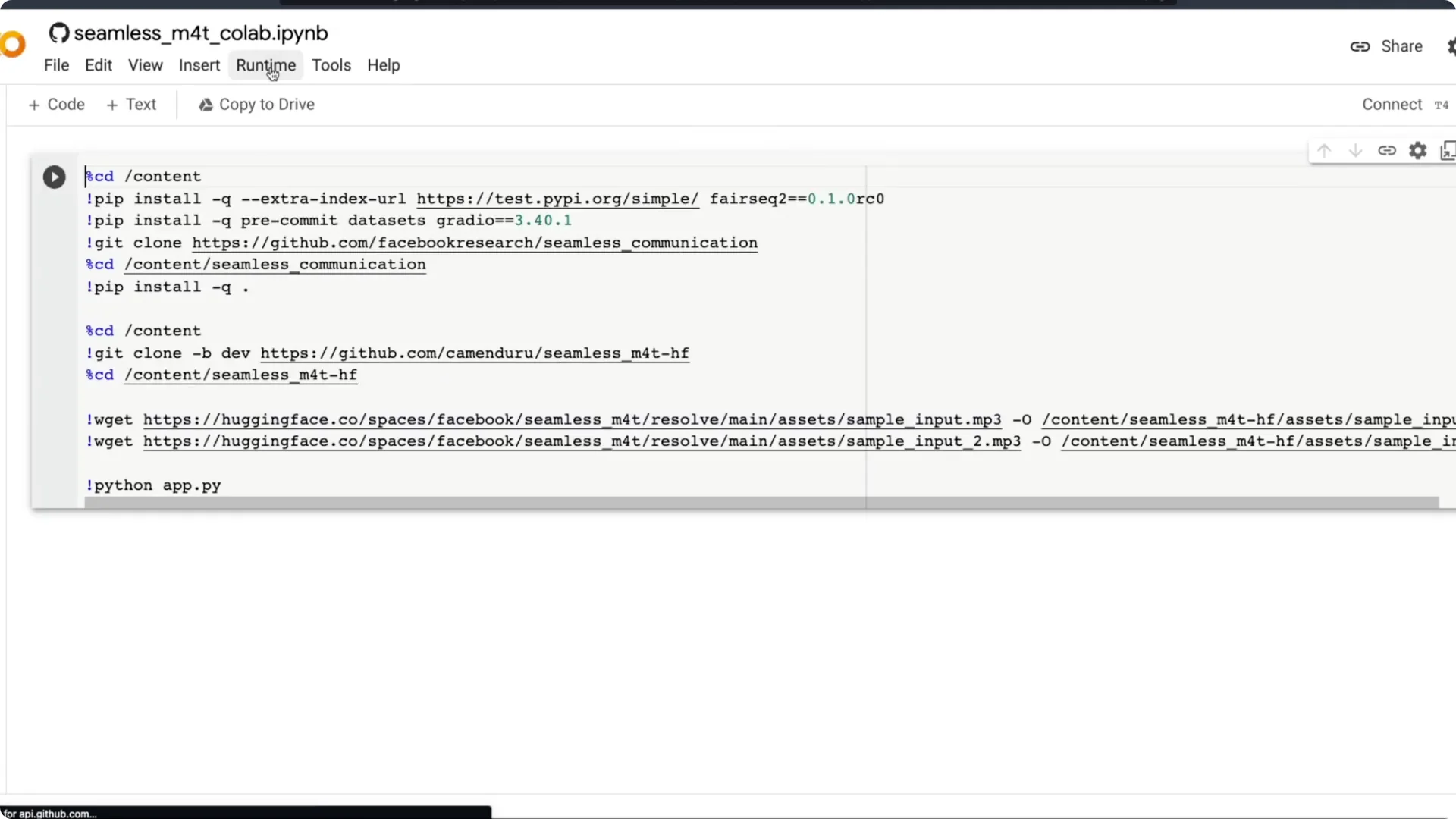
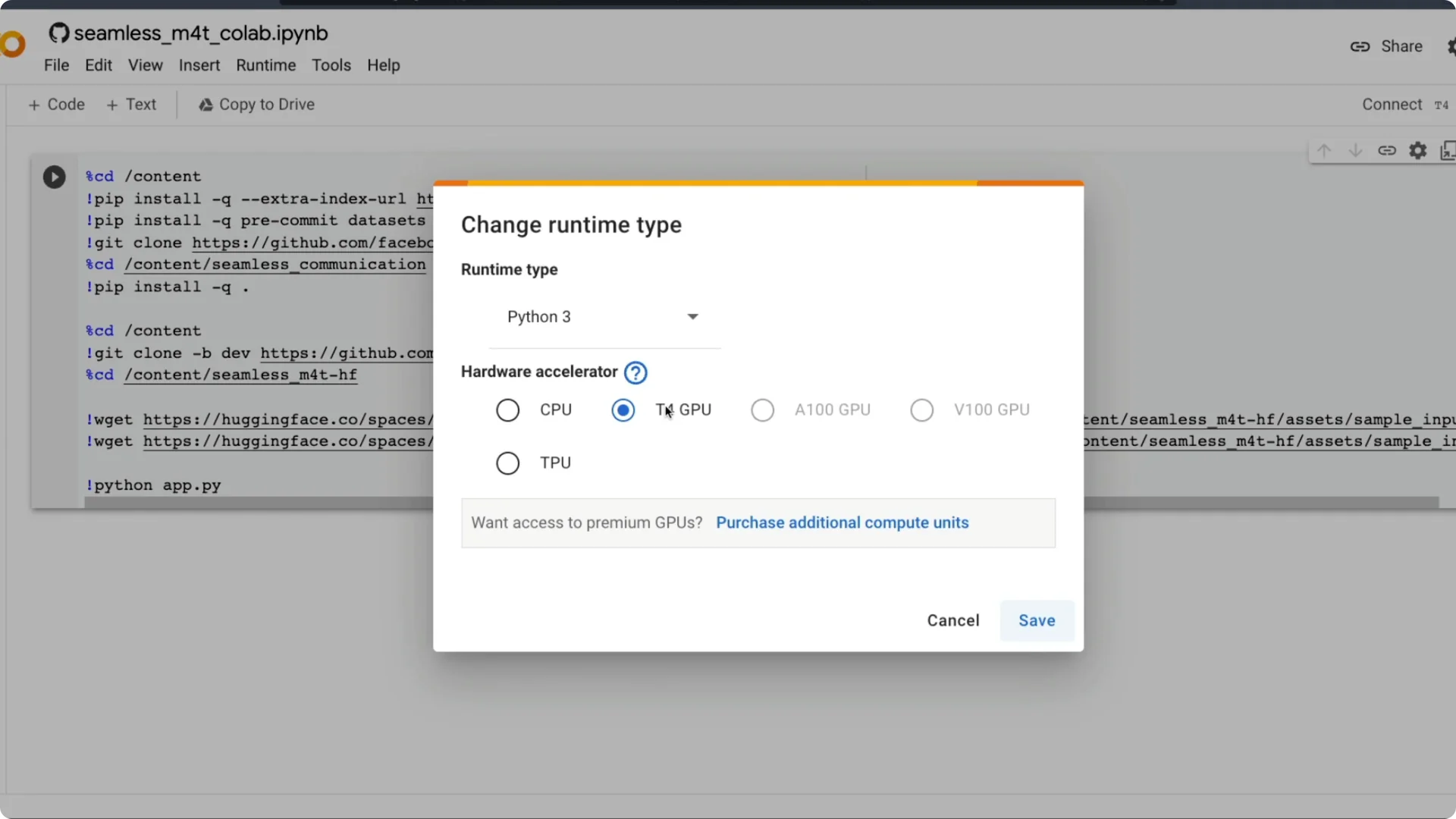
Make sure the hardware accelerator is set to T4 GPU. Most likely it should be. Then run all.
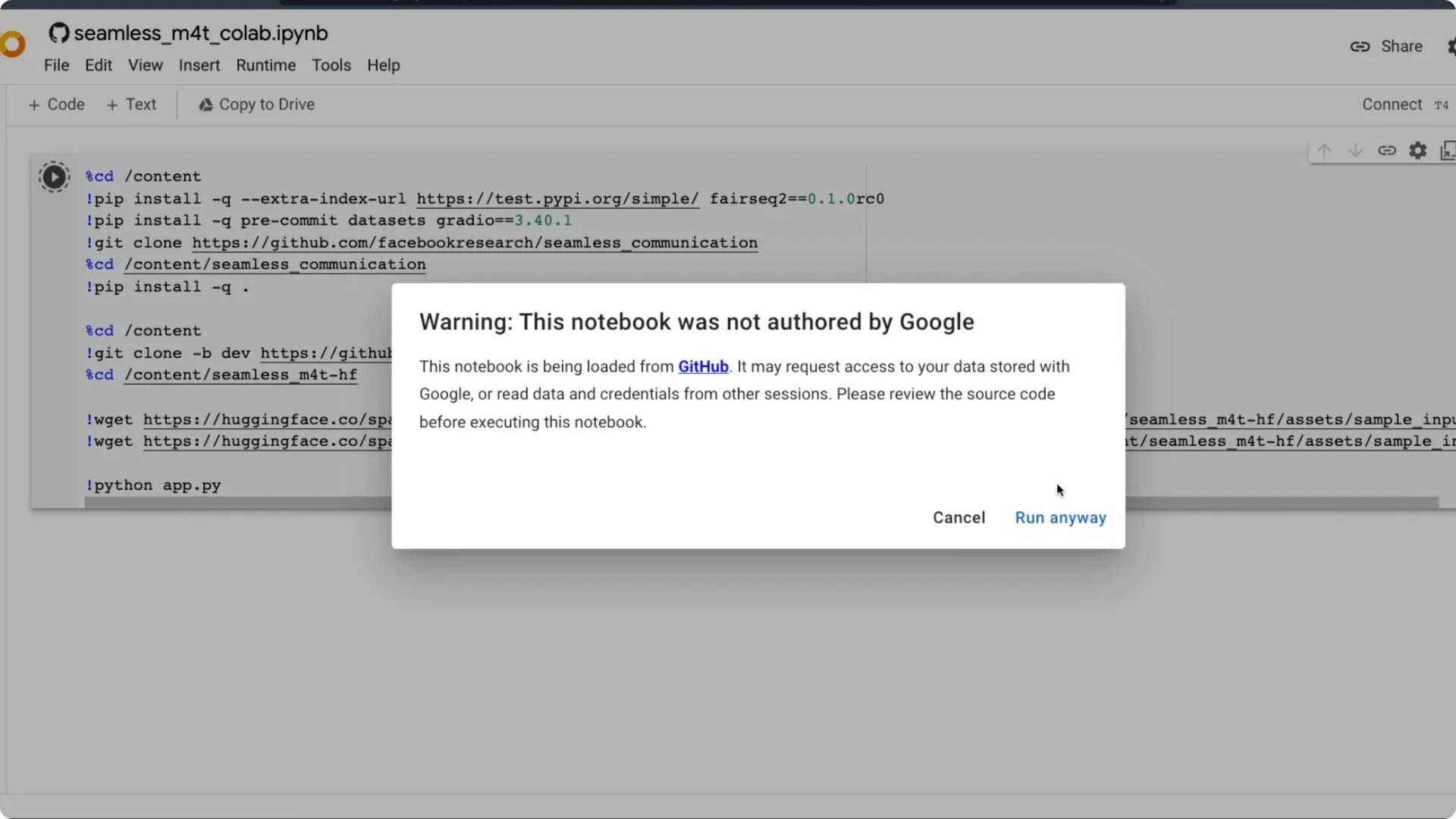
Google will warn that the notebook is loaded from GitHub and might request data access. Do not grant any access and click Run anyway. Once you do, the setup starts.
It installs a few libraries we need to use. One is fairseq2, the library that Facebook uses to connect with their models. We also use datasets and Gradio for the graphical interface, plus the seamless communication repository from Meta AI that has the model code.
The notebook clones the repository, installs everything, and then launches the app. After it runs, you will get a Gradio link you can click to access the interface. If you have a Linux GPU machine, you can also run these same steps on your terminal or download the notebook and open it in your local Jupyter setup.
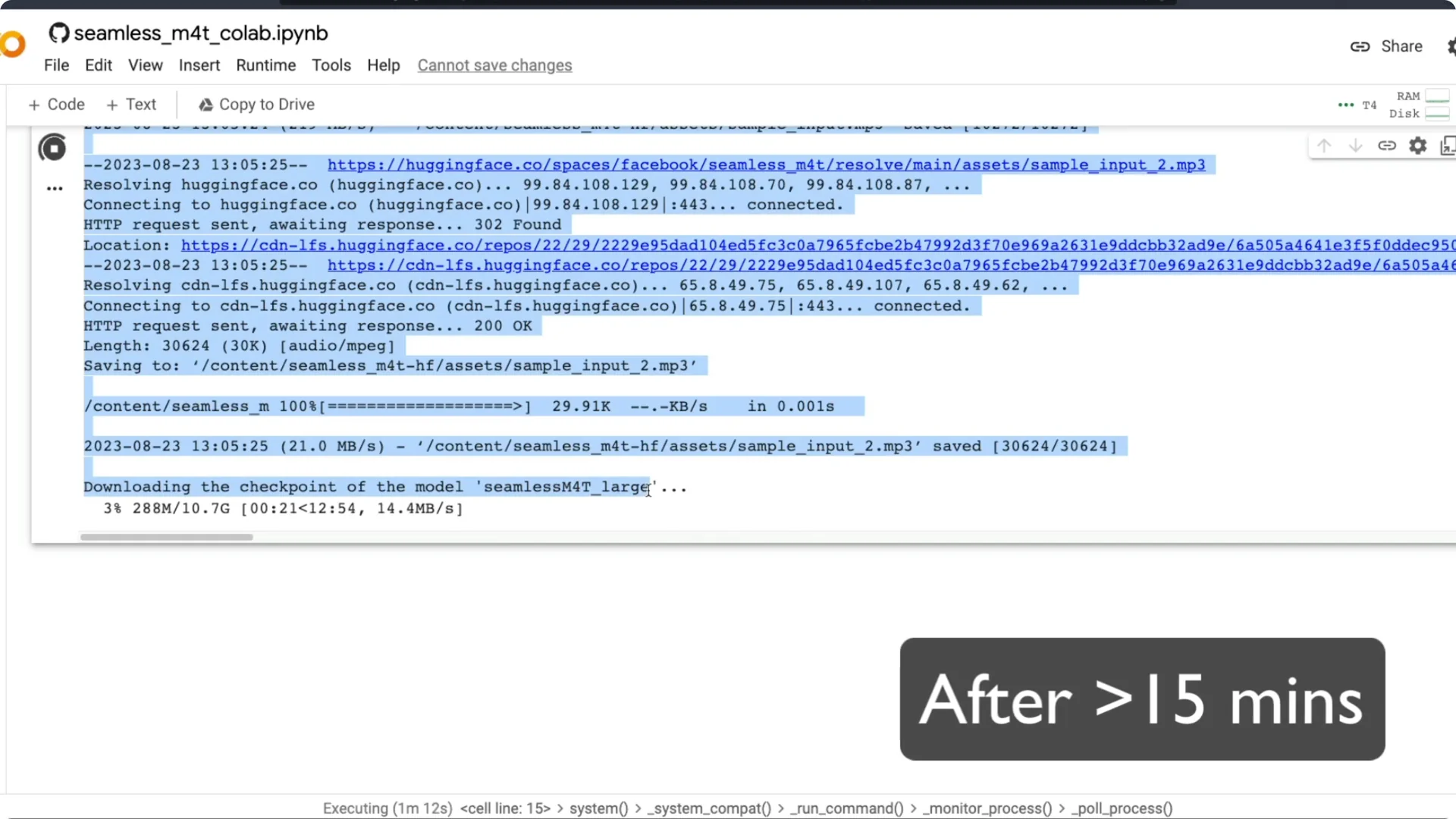
At this point you will see the model files start downloading. It downloads the large model. After the required models are downloaded, the Gradio link appears and anyone with the link can access the app on the internet.
If you want background on Meta’s multilingual speech work, see our overview of the Meta MMS AI speech model.
Set up SeamlessM4T on Colab
Get the notebook
Open the Colab notebook from the repository. Confirm the runtime is set to T4 GPU. Click Run all.
Install and launch
A GitHub warning appears about data access. Do not grant access and proceed. The notebook installs dependencies, downloads model files, and starts Gradio.
Access the interface
After launch, you will see the Gradio link. Click it to open the app in your browser. You can also open the notebook in a local Jupyter environment and run it on your own GPU.
Run locally
If you have a Linux GPU machine, run the same commands in your terminal. It should work fine with the same steps. The experience is very similar to Colab.
Tasks in SeamlessM4T on Colab
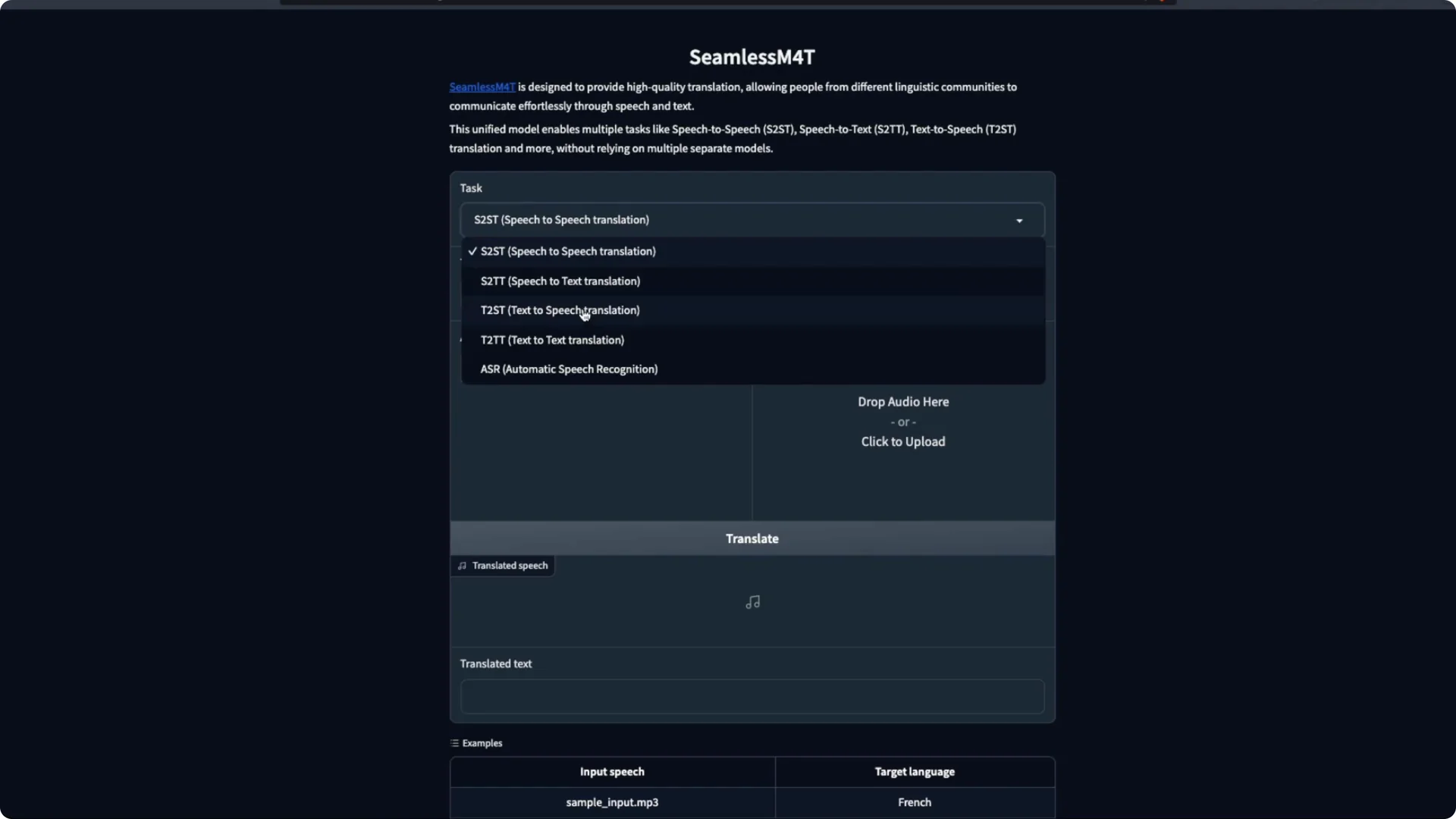
The Gradio app has a few parts. First, select the task you want to do. You can choose speech to speech, speech to text, text to speech, text to text, or automatic speech recognition.
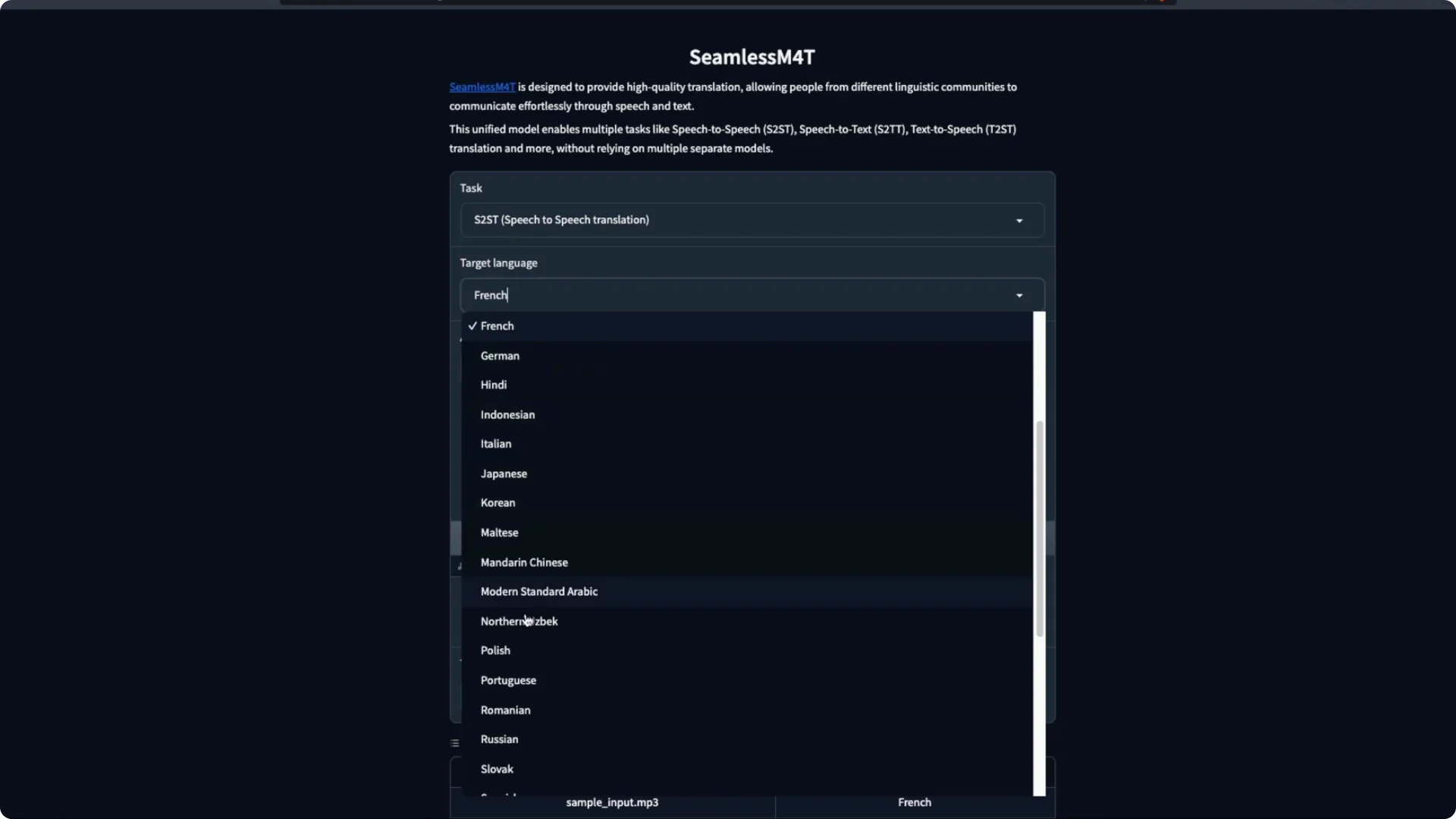
For each task, pick the target language and the input language. Available languages differ by task. For example, Malayalam appears for text to text, but not for speech to text.
Make sure the language pair you want is supported by the model. Then decide to upload a file or use your microphone. For this demo, I use the microphone.
Speech to text can handle one language or mixed speech in multiple languages. I have seen it work fine in earlier tests. I will pick English as the target language and speak in two languages I know.
I say a simple sentence in Tamil and then in Hindi. I stop the recording and click Translate. The system returns the translation.
It says my name and that I love watching YouTube videos. It did not catch my Hindi part in that trial. Mixing languages did not go well in that pass, but it can work.
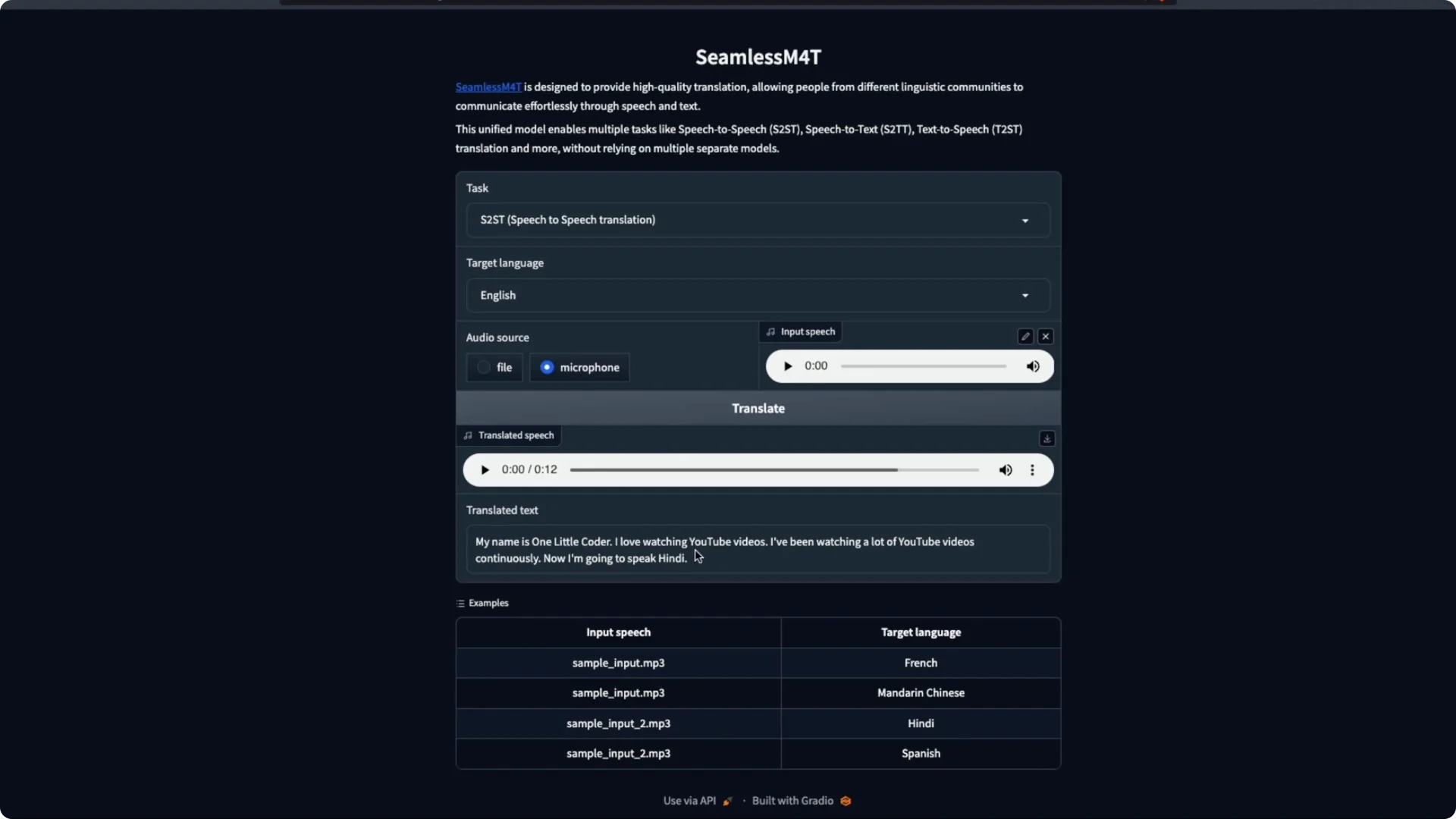
I try Hindi again with another short line. My Hindi is rusty, but I test it anyway. The output is decent, and it gets most of the intent even with a proper noun.
Next I speak in English and ask the system to reply in other languages. I pick Modern Standard Arabic first. I record a longer line about making videos and educating people and then translate.
We are running the large model, and it still takes less time than I expected. I like the speed. I switch the target to Russian and reuse the same input audio for translation.
All this time, I am using speech to speech and translating into supported languages. I also test Mandarin Chinese. The idea of recording in one language and getting multiple audio outputs is very appealing.
There is a gray area around commercial use for this model. Still, the capability of a single model doing multiple translations is thrilling. I am trying to get over the fact that this is freely available to run.
Speech to text in SeamlessM4T on Colab
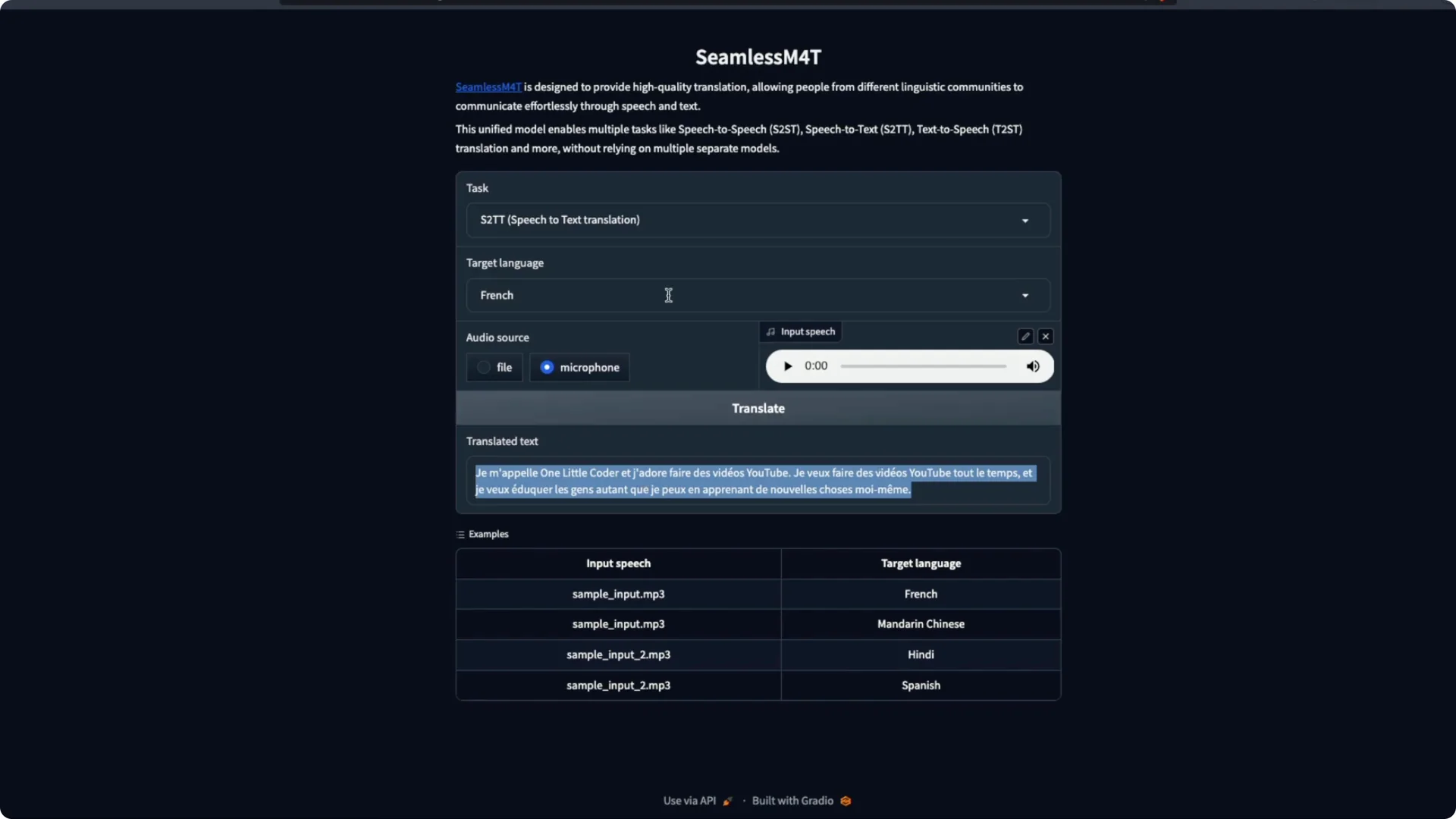
The next task I explore is speech to text translation. Instead of giving speech output, it shows only text as the result. I click Translate and it produces text in the target language.
I pick French as the target and speak in English. It returns French text for my English input. This works in a very straightforward way.
If you need a speech-first chat pipeline and ASR tools, see our overview of Lemur Chat Audio by AssemblyAI.
Text to speech in SeamlessM4T on Colab
Text to speech takes an input text and produces audio in the target language. I select Hindi and type a line with a proper noun and brand names to see how it handles them. It tries to read the English names in Hindi, which makes a small mistake.
I try Spanish next with the same input text. It does not say the word “one” as I expected but gets closer and captures the idea that I like making videos. Overall this works fine.
For more voice options and engines you can run yourself, check our roundup of free open source AI text to speech.
Text to text in SeamlessM4T on Colab
Text to text lets you pick an input language and an output language. I give an input and select Tamil as the output. It returns a perfect translation for my sentence.
It even handles the brand word by rendering a suitable Tamil form. That output is 100 percent correct for the example I can read. I am very happy with the quality here.
Automatic speech recognition in SeamlessM4T on Colab
ASR takes a long audio clip and returns text. I already have an audio sample, so I select Tamil and run Translate. It returns a very proper and literal Tamil transcription.
It captures my full message well, including that I want to keep making videos and learn and teach. The quality is strong. Overall it does a very good job.
Performance and resources for SeamlessM4T on Colab
This runs on free Colab with a T4 GPU. I see about 6.4 GB of VRAM used. Storage use in the session is around 37 GB.
The model itself is about 11 to 12 GB and the rest is OS and other files. If you have a GPU with less than 10 GB of VRAM, you should still be able to run the large model. The smaller model should be compatible with edge devices and possibly PyTorch Mobile.
A big thanks to camenduru for making this easy to run with a single click. You run it, get the Python Gradio link, click the link, and start testing. The experience is smooth on Colab.
Resources
Open the Colab notebook here: SeamlessM4T – Colab Notebook.
Browse the repository here: camenduru’s GitHub – seamless-m4t-colab.
Final thoughts
We ran the large model on free Colab with a T4 GPU and tested all five tasks. Speech to speech, speech to text, text to speech, text to text, and ASR all worked well with some minor quirks on proper nouns. The speed, quality, and simplicity of the Colab setup make it easy to start experimenting today.