This is a completely new text-to-speech model. It is open source and quite amazing. If you have used 11 Labs before, this is brilliant stuff like that but open source.
You give a text and it can generate audio with naturally sounding voices. You can add laughter and pauses. I wanted to show how to use it on Google Colab and share key details about the model.
What is Suno Bark Text-to-Speech
The model is called Bark from a company called Suno AI. Bark is a Transformer based text-to-audio model created by Suno.
Bark can generate highly realistic multilingual speech as well as audio, including music, background noise, and simple sound effects.
The model can also produce non-verbal communications like laughing, singing, and crying. For a sense of how commercial tools compare, see our overview of ElevenLabs TTS.
Suno Bark Text-to-Speech demo notes
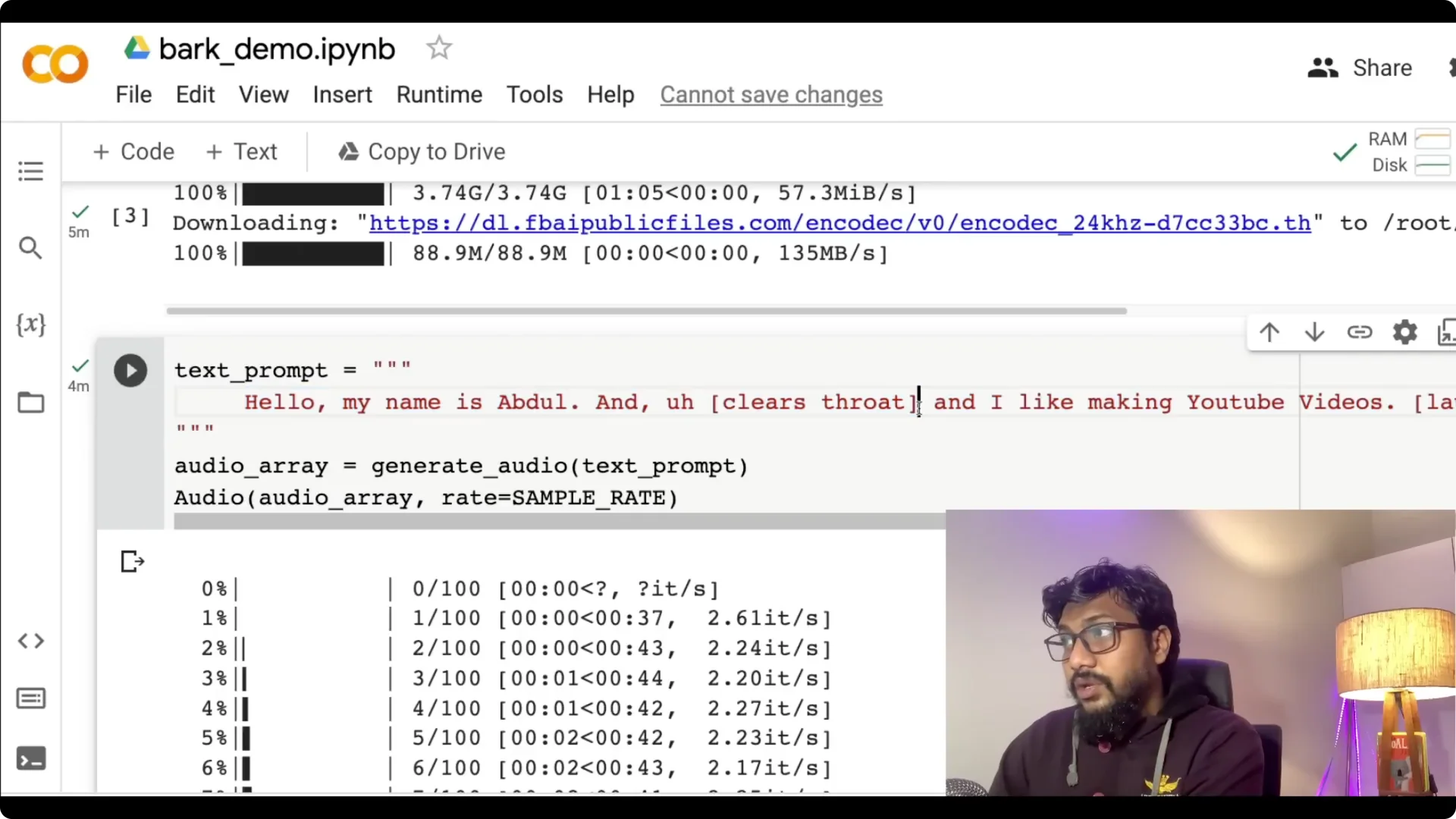
A simple prompt like “hello my name is Abdul and I like making YouTube videos” can be enhanced with cues to clear the throat or add laughter.
You add those cues in the text, then generate and listen to the result. It is super impressive.
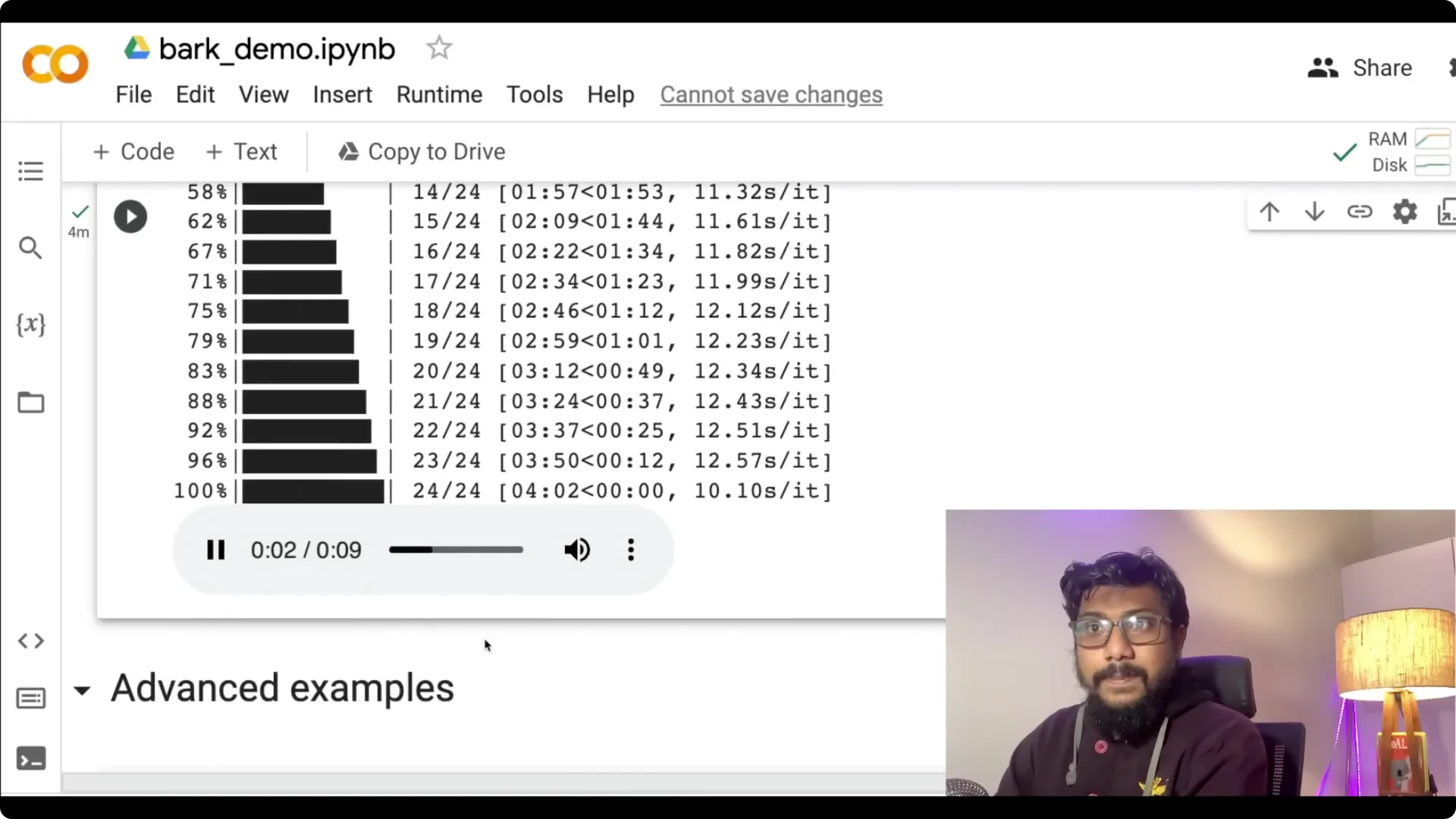
Bark also handles multilingual prompts.
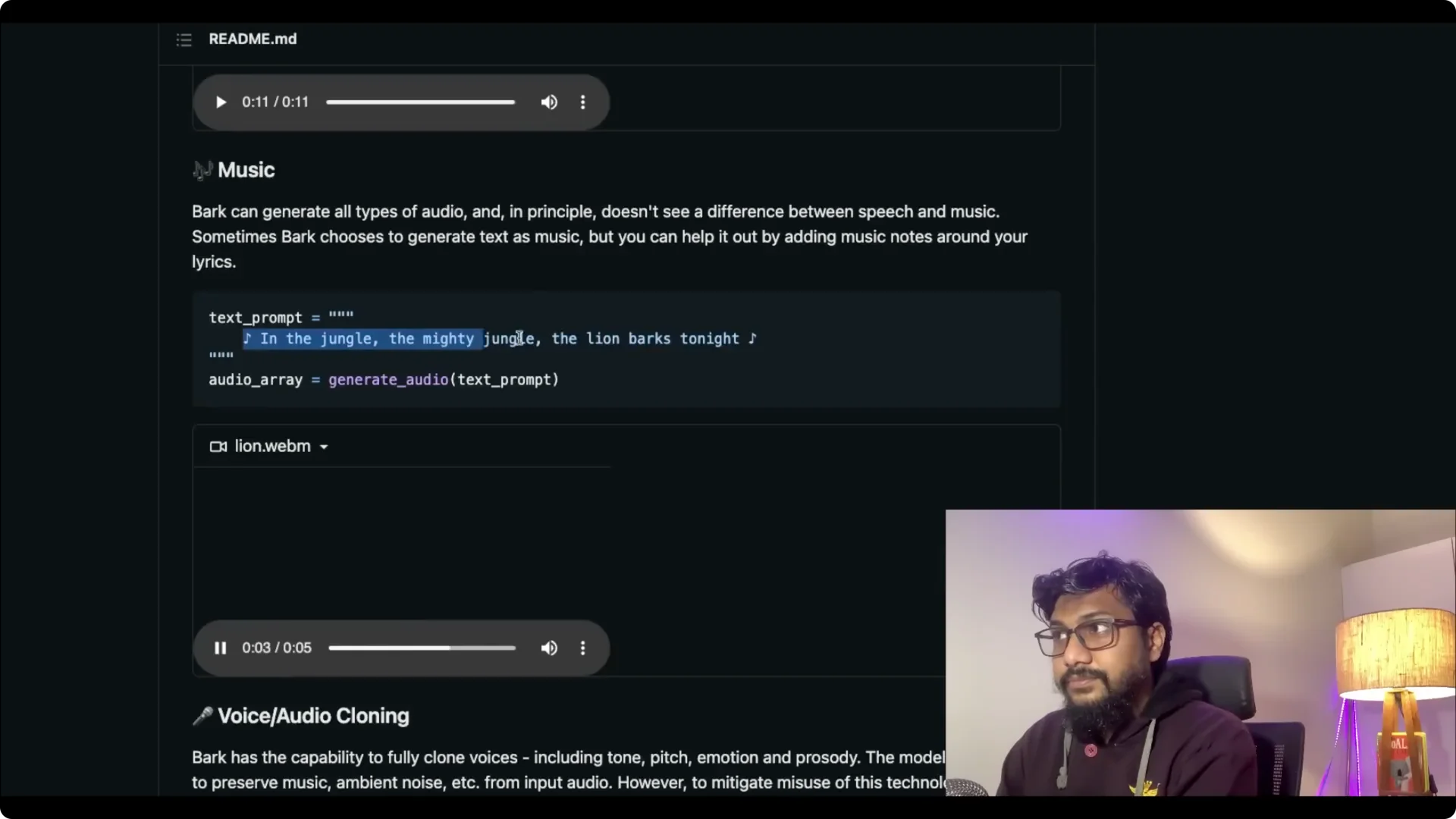
You can switch languages inside the same prompt. It can generate music as well.
Voice cloning in Suno Bark Text-to-Speech
Bark can clone voices, including tone, pitch, emotion, and prosody. The model also attempts to preserve music and ambient noise from the input audio.
To mitigate misuse, audio history prompts are limited. Suno provides fully synthetic options for specific languages, and you cannot take any celebrity’s voice and clone it.
Speaker prompts in Suno Bark Text-to-Speech
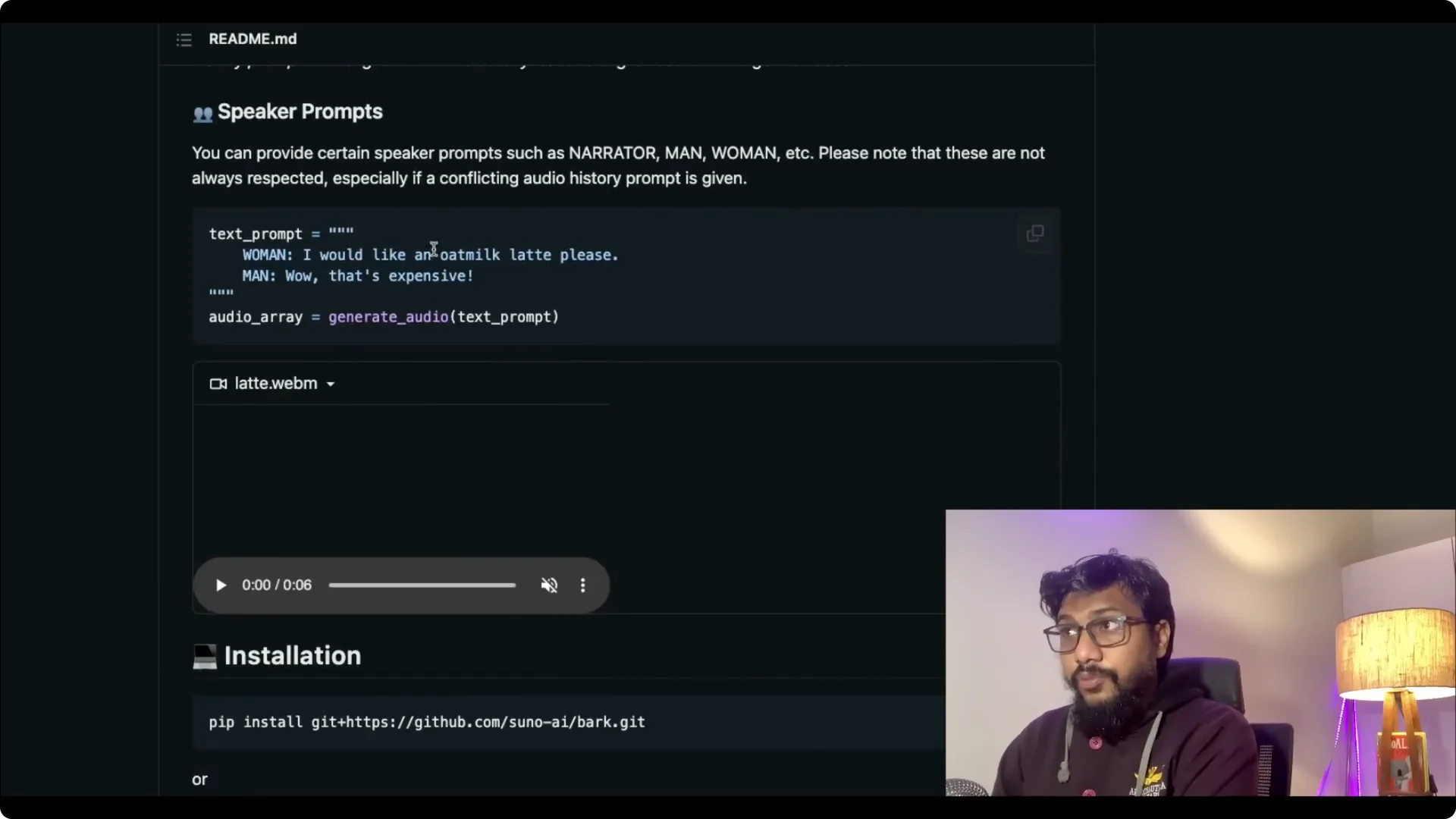
You can set up speaker prompts like woman and man. The system reads all of this from the text prompt. The text prompt is the core.
How Suno Bark Text-to-Speech works?
Microsoft released a paper called VALL-E, but the model was never released. Similar to VALL-E and other work in the field, Bark uses a GPT-style approach to generate audio from scratch.
The initial prompt is embedded into high level semantic tokens without using phonemes. This lets it generalize to arbitrary instructions beyond speech that occur in the training data, including music, lyrics, sound effects, and more.
A subsequent second model converts the generated semantic tokens into audio codec tokens to generate the full waveform.
The words become the high level semantic tokens, and those tokens are then converted into audio using the EnCodec codec that Facebook released.
Bark can also do non-speech sounds like laughter, gasps, clears throat, hesitations, song lyrics, capitalization for emphasis, and speaker tags like man and woman.
If you are working on the reverse direction, check our tutorial on turning audio into text with Hugging Face in this guide to English speech-to-text. For a Python project that uses OpenAI Whisper to transcribe speech, see our walkthrough of building speech-to-text with Whisper.
Supported languages in Suno Bark Text-to-Speech
Bark supports English, German, Spanish, French, Hindi, Italian, Japanese, Korean, Polish, Portuguese, Russian, Turkish, and Chinese simplified. Arabic, Bengali, and Telugu are coming soon.
License and usage for Suno Bark Text-to-Speech
Bark is licensed under a non-commercial license, CC BY-NC 4.0. The Suno models themselves may be used commercially, however this version of Bark uses EnCodec as a neural codec backend, which is licensed under a non-commercial license.
Contact bark@suno.ai if you need access to a larger version of the model or a version that you can commercially use. There is also a playground where you do not have to run this on Colab.
Run Suno Bark Text-to-Speech on Google Colab
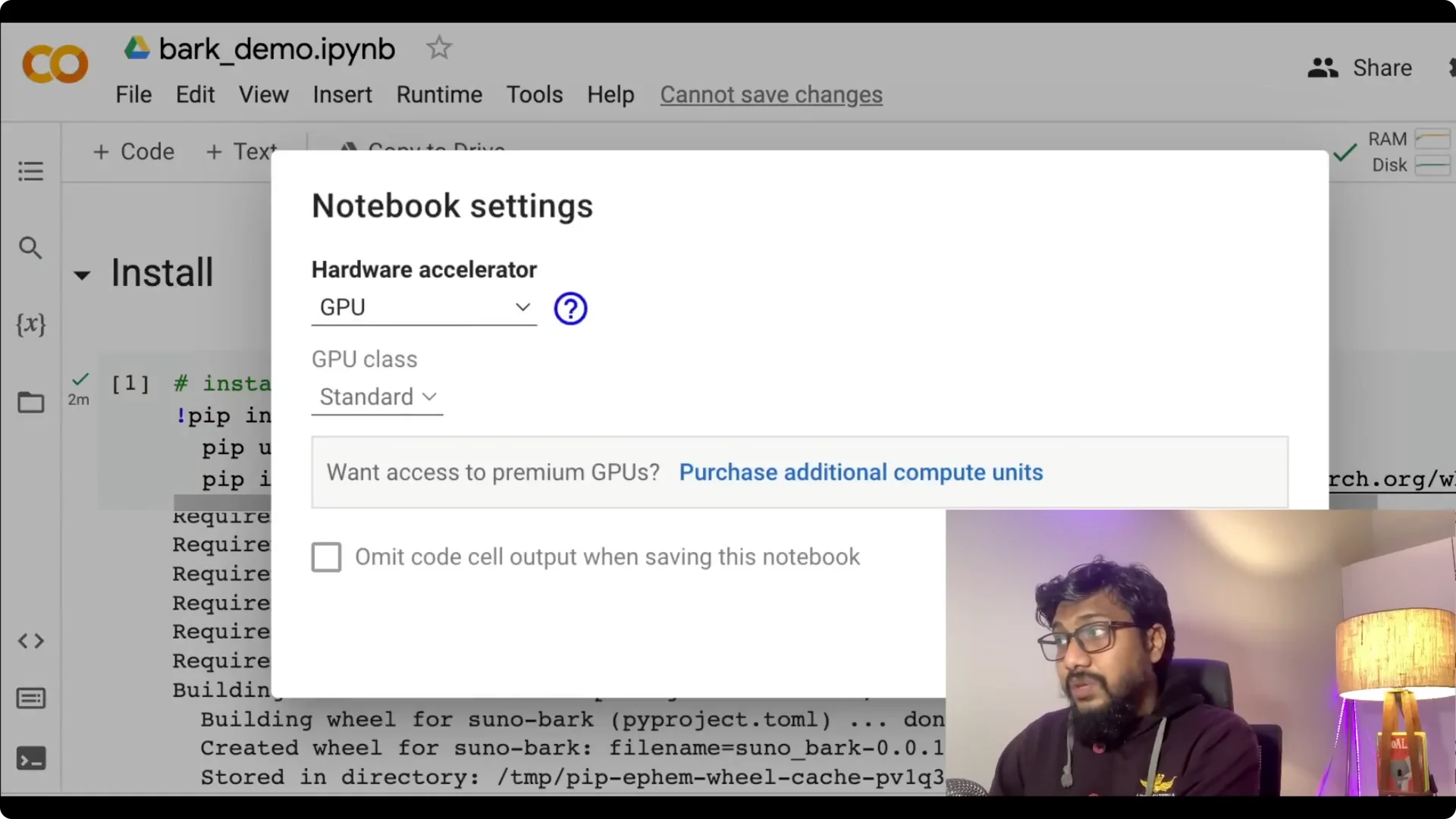
Step 1: Open the Colab and set up the runtime. Go to Runtime, choose Change runtime type, and select GPU.
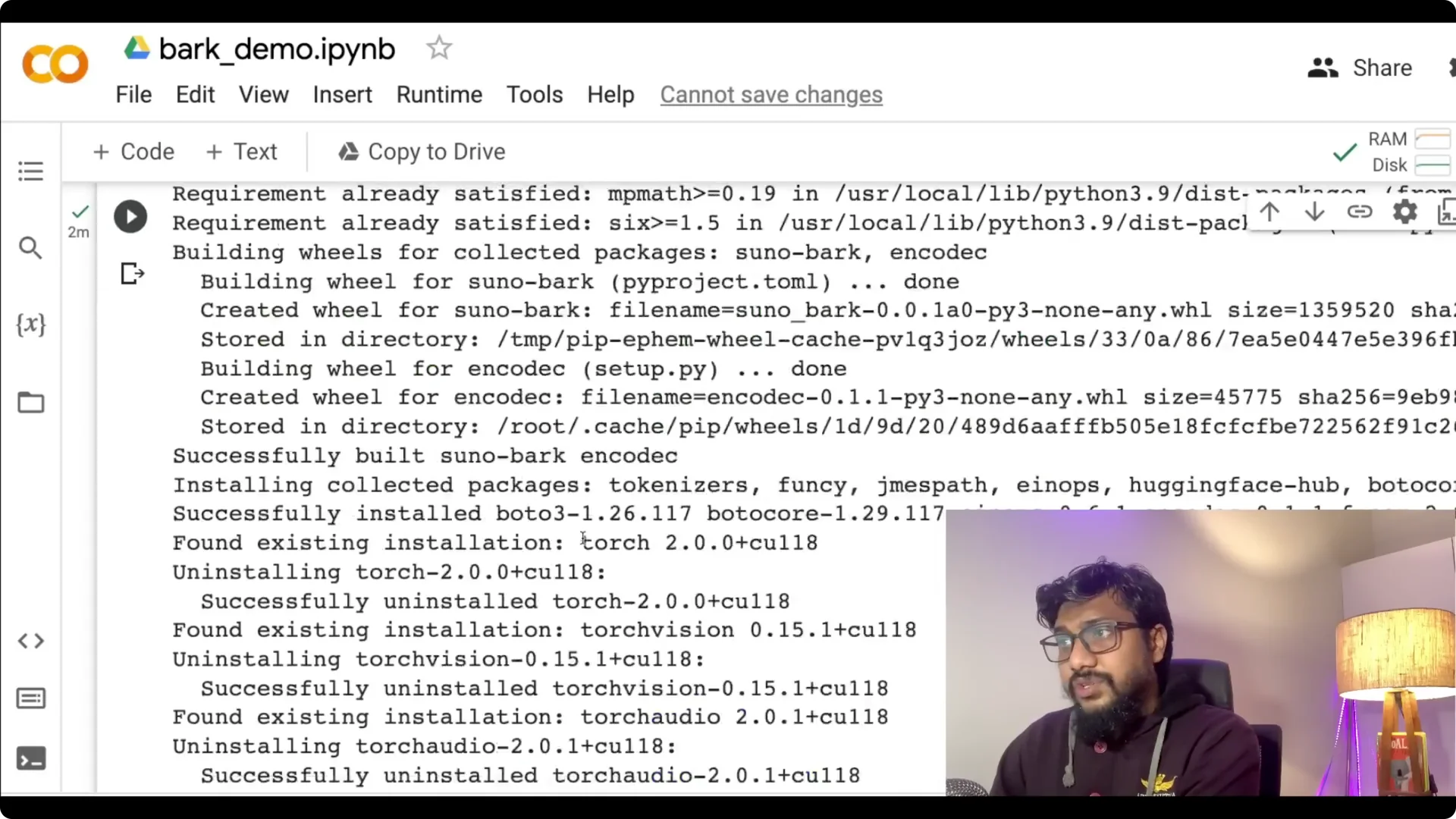
Step 2: Install the dependencies. Install Bark, torch, torchvision, torchaudio, and the right CUDA version for your runtime.
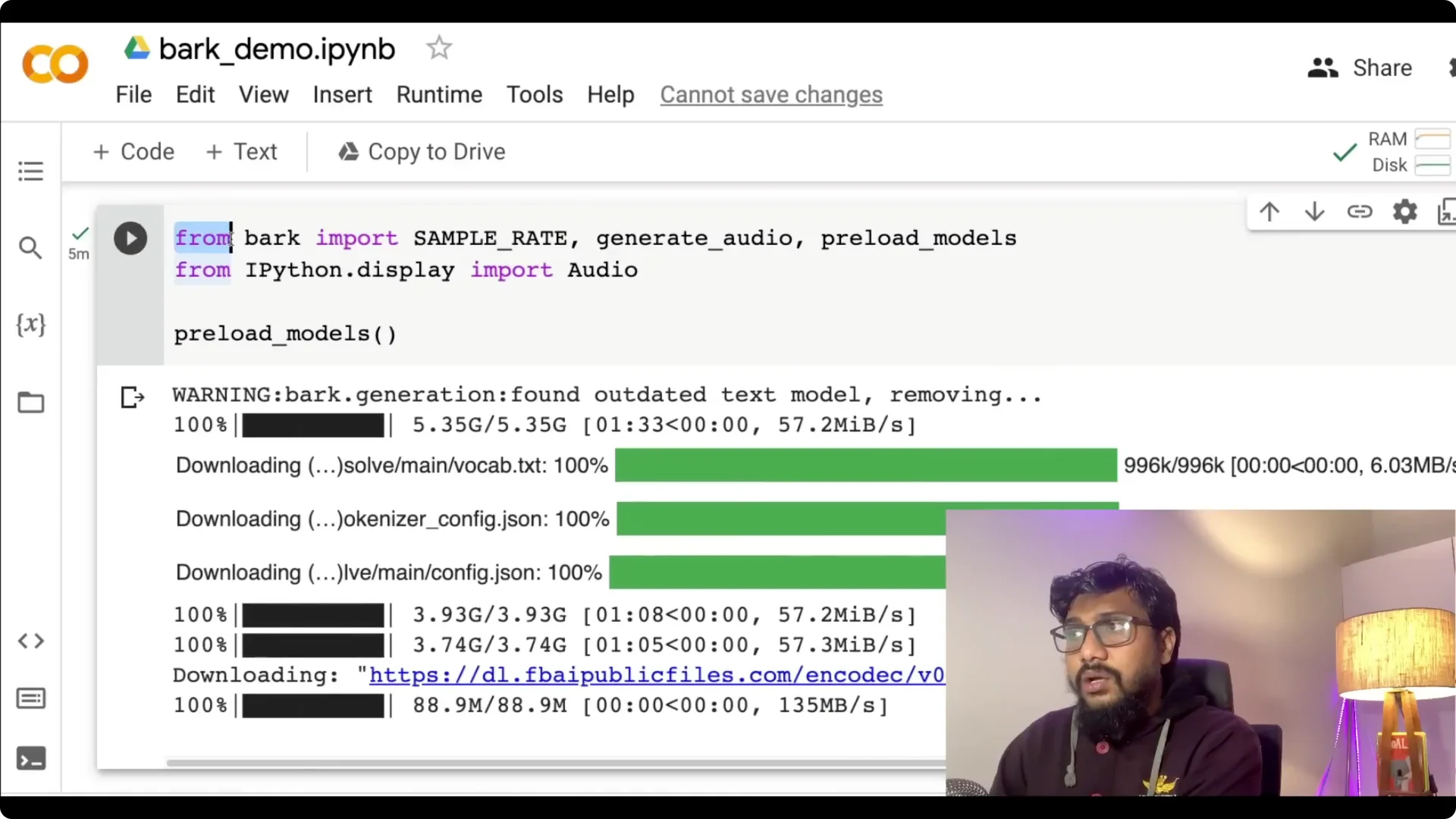
Step 3: Import and preload the models. Use from bark import SAMPLE_RATE, generate_audio, then call the preload functions to cache the models.
Step 4: Prepare your text prompt. Write your text and add any non-verbal cues you want, like laughter, hesitations, or clears throat.
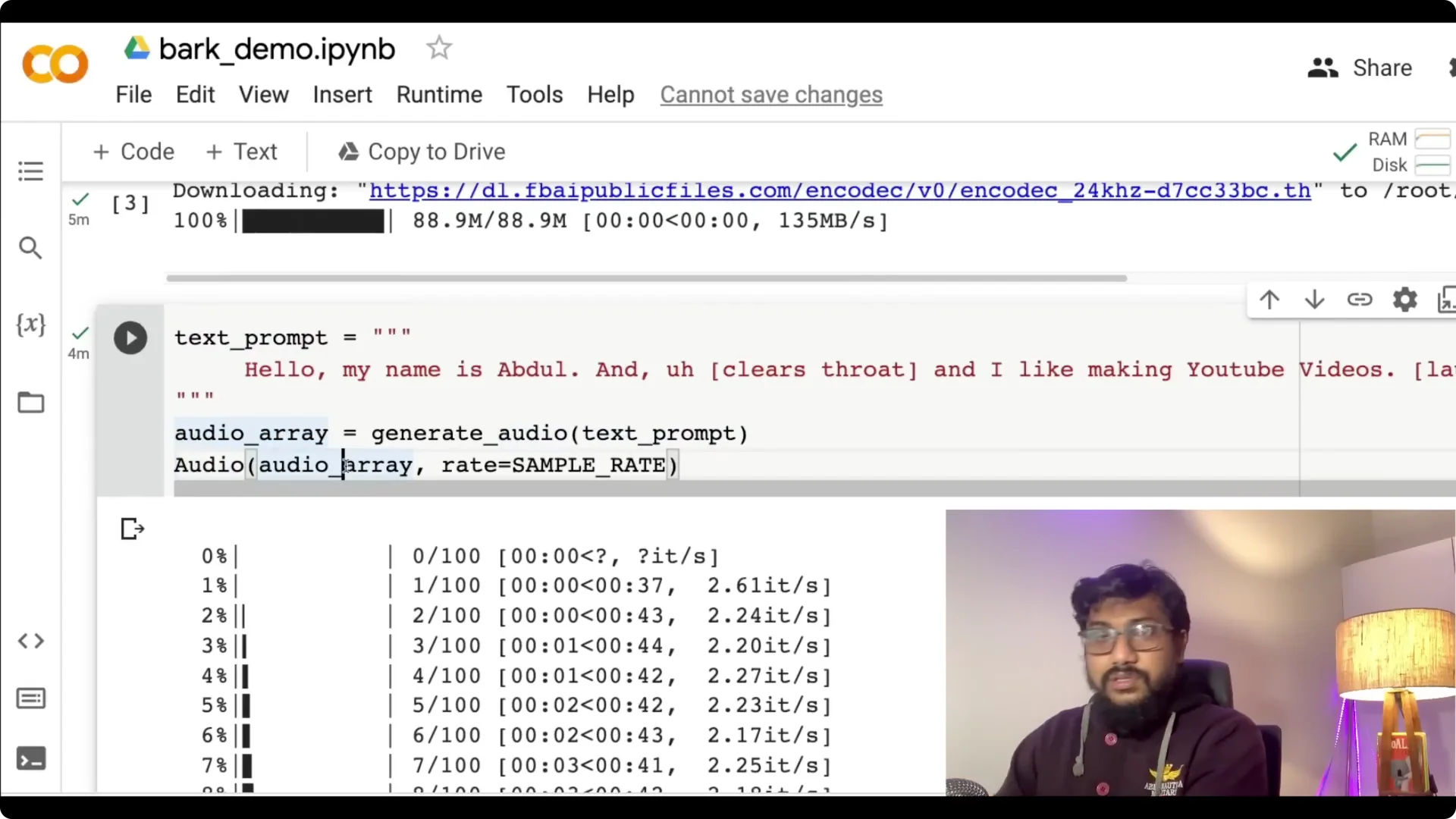
Step 5: Generate audio. Call generate_audio with your prompt, capture the audio array, and play it in the notebook.
Preloading the models can take a bit of time. I have successfully managed to run this on free Colab.
You also have options for speaker style like man and woman, and several example prompts to start with.
Final thoughts
We have got a strong GPT-equivalent of text-to-audio models and it is open source. Even though commercial use is not allowed for this release, the openness is valuable and the quality is remarkable. The Suno team is active on GitHub, and the project is already fun to experiment with.
Resources
Bark from Suno.ai on GitHub: github.com/suno-ai/bark.
Try it on Colab: Google Colab notebook.